Your Claude + ZenMode LinkedIn sales setup
Claude finds people showing buying signals on LinkedIn and writes a personal note for each. You approve every one, and ZenMode sends inside your daily limits.
Start free trialStart your free trial
Pick Practitioner or above, because Novice does not include the Claude connection. Add your card to start the free 14-day trial. You are not charged during the trial, and you can cancel any time before it ends.
Then enter your website when ZenMode asks for it.
Set what Signals watches
Open the Signals tab in ZenMode and choose what to watch: your competitors, your topics and the industry experts your buyers follow. This is done on the tab, because Claude can read these settings but cannot change them.
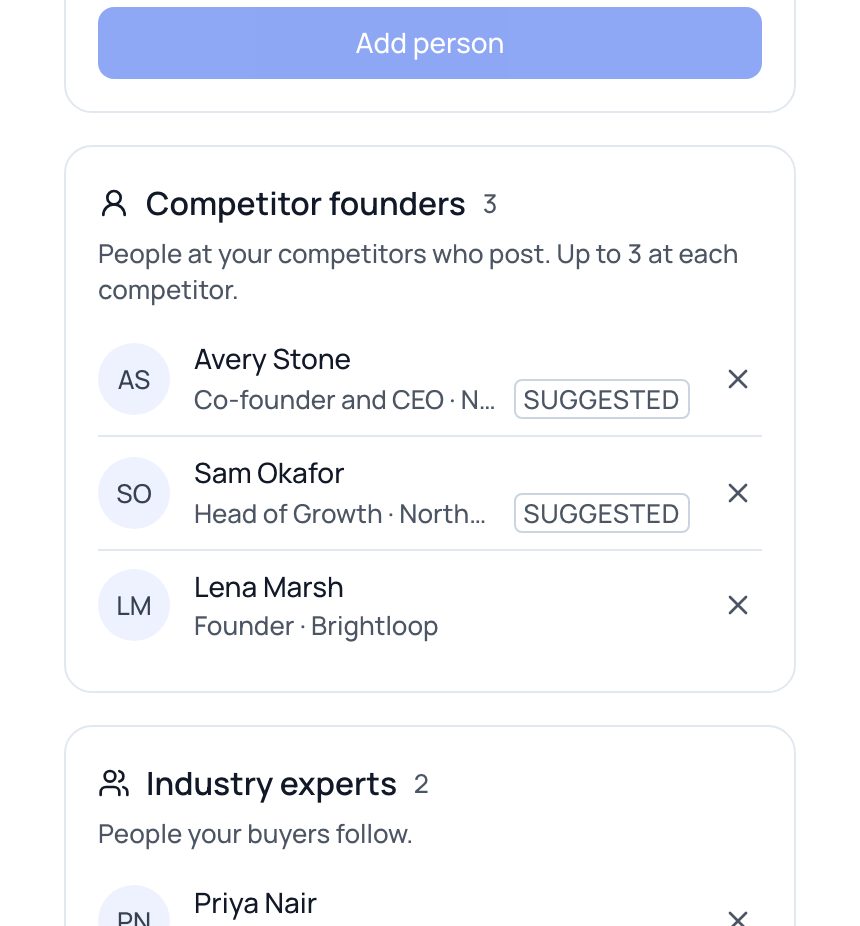
Illustrative example. The names are made up. Connect ZenMode to Claude
Do this once in claude.ai or the Claude desktop app.
- Go to Customize, then Connectors, and click Add. Choose to add a custom connector (it may show as Custom, then Web).
- Name it ZenMode, paste this server address, and leave the advanced OAuth settings empty.
https://www.zen-mode.io/api/mcp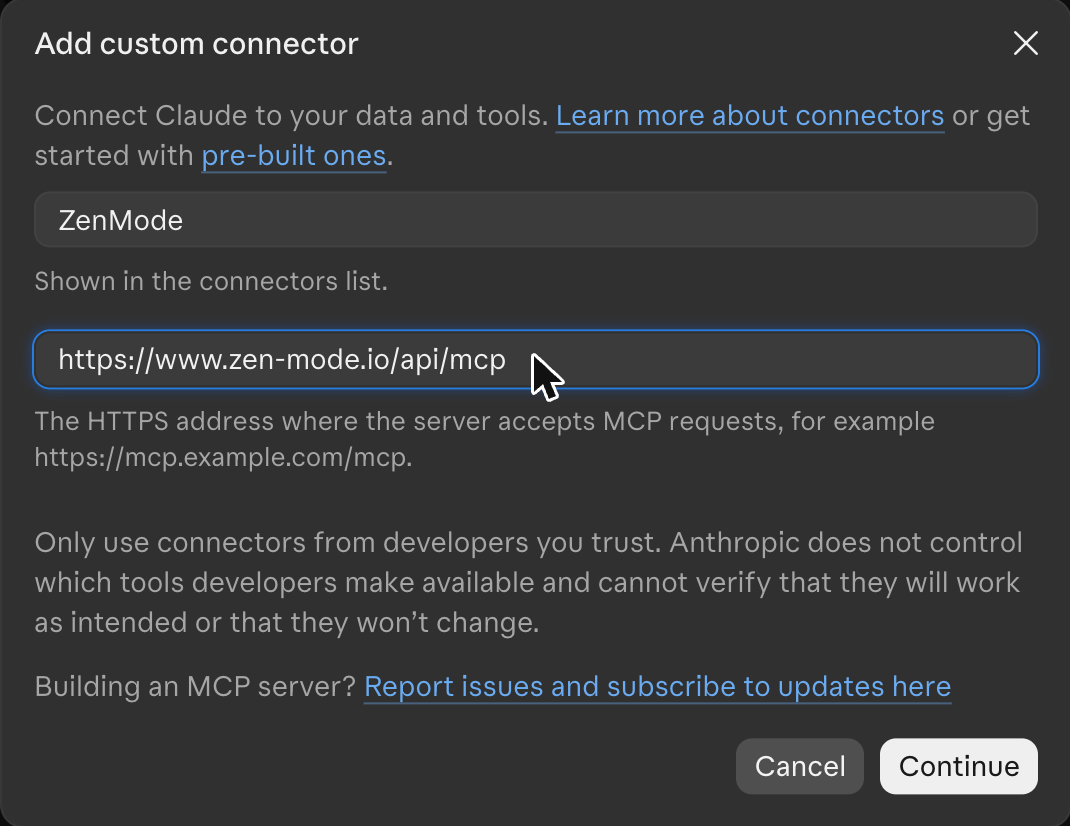
Claude's Add custom connector window. - Click Continue. A ZenMode page opens, so sign in or create your account.
- Choose Read and change, then click Allow. Read only is the default, and it would let Claude look but not add people to a campaign or launch it.
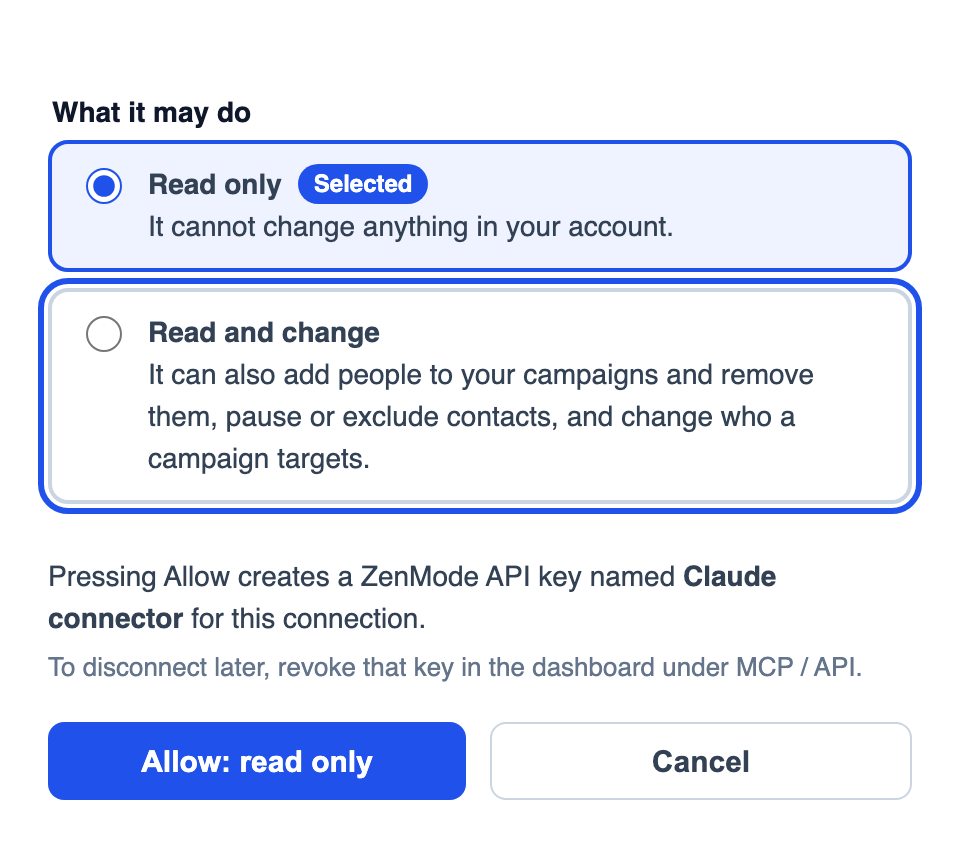
The ZenMode consent screen. Read only starts selected, so pick the outlined option. - In a new chat, open the + menu, go to Connectors, and switch ZenMode on.
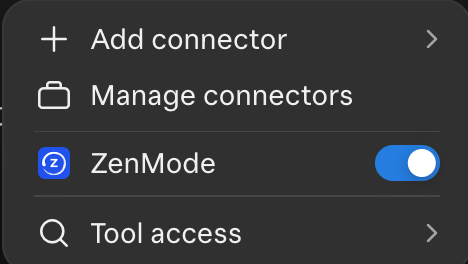
ZenMode switched on in a Claude chat.
Which Claude plans work: Anthropic allows custom connectors on Free, Pro, Max, Ultra, Team and Enterprise. Free is limited to one custom connector. On Team and Enterprise, an owner adds it first under Organization settings, then Connectors.
Open the ZenMode app once and sign in to LinkedIn
Download the ZenMode desktop app, open it, and sign in to LinkedIn there. Sending only happens while the desktop app is open, so keep it open when you want messages to go out.
Paste the prompts
Use them in order, in a chat with ZenMode switched on.
The prompts
Each person costs 1 credit to find, and 1 more if ZenMode researches them and writes their note, so up to 2 credits a person. Your trial includes 50 credits, which is why the prompts below ask for your strongest 10: that uses up to 20. Claude tells you the cost and waits for your yes before spending any.
1. Find the strongest signals
Use ZenMode to find my strongest 10 buying signals from this week. Tell me what it will cost in credits and wait for my yes before you search. Then explain in one line why each person fits.
2. Draft the notes
For the people I pick from that list, draft a short personal LinkedIn connection note for each one, based on their signal. Check each note with ZenMode's message check. Show me every note and change nothing until I approve it.
3. Build the campaign
Add the people and notes I approved to a new ZenMode campaign, giving each person their own note. Show me the summary and ask me before launching. Do not launch until I say yes.
4. Handle the replies
What replies came in on LinkedIn this week? Show me who replied and what they said, then suggest what I should say to each. Only draft the answers. Do not send anything.
Tips
- Read the reasons before you ask for notes
- Drop anyone whose reason to fit looks weak. Your credits go further when you only research the people you would really message.
- Claude says it cannot make changes
- The connection is read only. Disconnect ZenMode in Claude and connect again, choosing Read and change.
- You cannot see ZenMode in a chat
- Connectors are switched on per chat. Open the + menu, go to Connectors, and switch ZenMode on.
- You are on Claude Free and already have a custom connector
- Free allows one, so remove the other connector first or move to a paid Claude plan.
- A note comes back as too long
- ZenMode refuses a note over your account's limit and never cuts it for you. Ask Claude for a shorter version.
- The campaign has started but nothing has gone out
- Starting a campaign contacts nobody at that moment. ZenMode works through it later, inside your daily limits and business hours, while the desktop app is open.
- You change your mind
- Ask Claude to pause the campaign. You can pause it at any time.
Who does what
- Claude: The brain
- Picks the strongest people, explains why they fit and drafts each note.
- ZenMode MCP: The wiring
- The connection that lets Claude work with your ZenMode account.
- ZenMode: Signals and sending
- Finds the people showing buying signals and does the sending, inside your daily limits.
- You: The approver
- Approve every message. Nothing starts without your yes.
Set it up today and let Claude find your first 10.
Start free trialJonathan
Founder, ZenMode