Free guide · Grok Bot · 6 parts
Run a LinkedIn sales team from Grok Bot
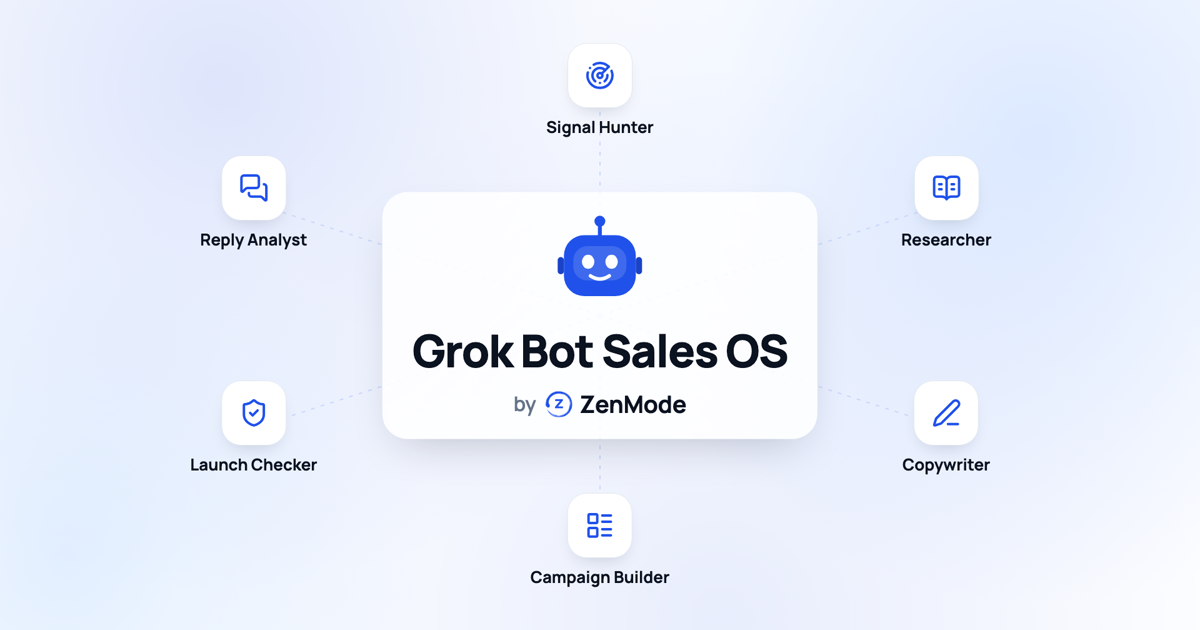
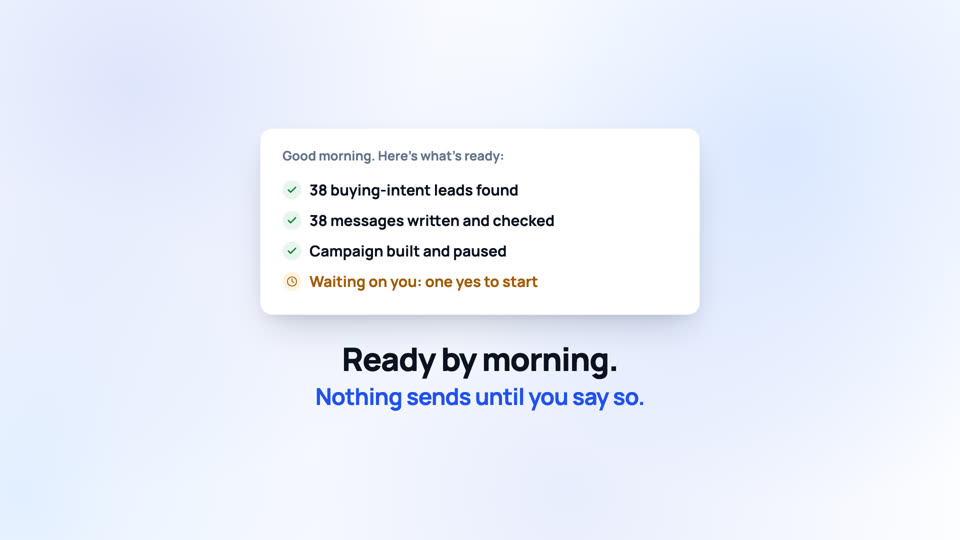
One line to Grok Bot, six specialists behind it: a Signal Hunter, a Researcher, a Copywriter, a Campaign Builder, a Launch Checker and a Reply Analyst. Each one is a real ZenMode tool. Ready by morning, and nothing sends until you say so.
Free. The whole guide is on this page; no email needed.

I'm Jonathan. I build ZenMode: I write the code, answer the support emails, and my own outreach runs through it. Grok Bot is built to take a task and work through it on its own, so I wanted to see if it could prepare a day of LinkedIn outreach and still stop at every point where money is spent or someone gets contacted. It did. This guide is that run, step by step. Questions: hello@zen-mode.io. I read everything.
Jonathan Lis · founder, ZenMode
Who it's for
Founders who use Grok Bot and want their LinkedIn outreach prepared while they get on with the day. Paid ZenMode plans except Novice, and a Grok plan that includes Grok Bot.
You leave with
ZenMode connected to Grok Bot, a paused campaign of people showing buying intent with their messages written and checked, and the prompts to do it again.
What's inside
How it was put together
We ran every step in Grok Bot on our own ZenMode account on 6 November 2026, stopping before the campaign started. Screenshots marked as a real run come from that day; the rest are stills from our video, with sample data. Grok and Grok Bot are made by xAI. ZenMode works with them through its MCP server and is not affiliated with xAI.
Part 1
Connect ZenMode to Grok
Grok Bot uses the connectors you add on grok.com. Add ZenMode once and both Grok chat and Grok Bot can use it.
| You need | Where |
|---|---|
| A paid ZenMode plan except Novice | Practitioner, Master or Dojo. Signals is included |
| A Grok plan that includes Grok Bot | We used Premium. xAI decides which plans include it |
| The ZenMode desktop app | Campaigns send only while it is open, on Mac or Windows |
Now do it in ZenMode
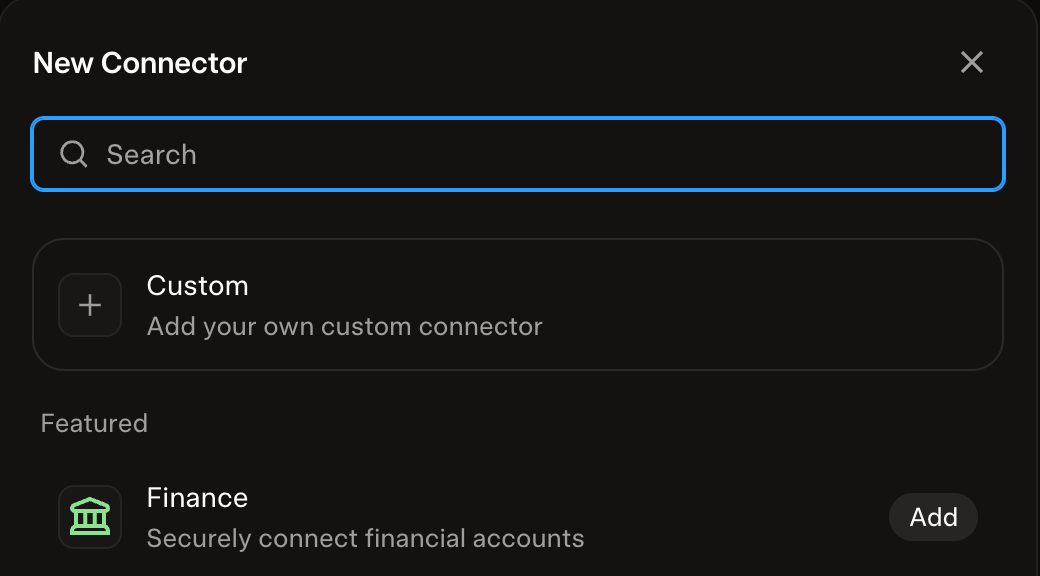
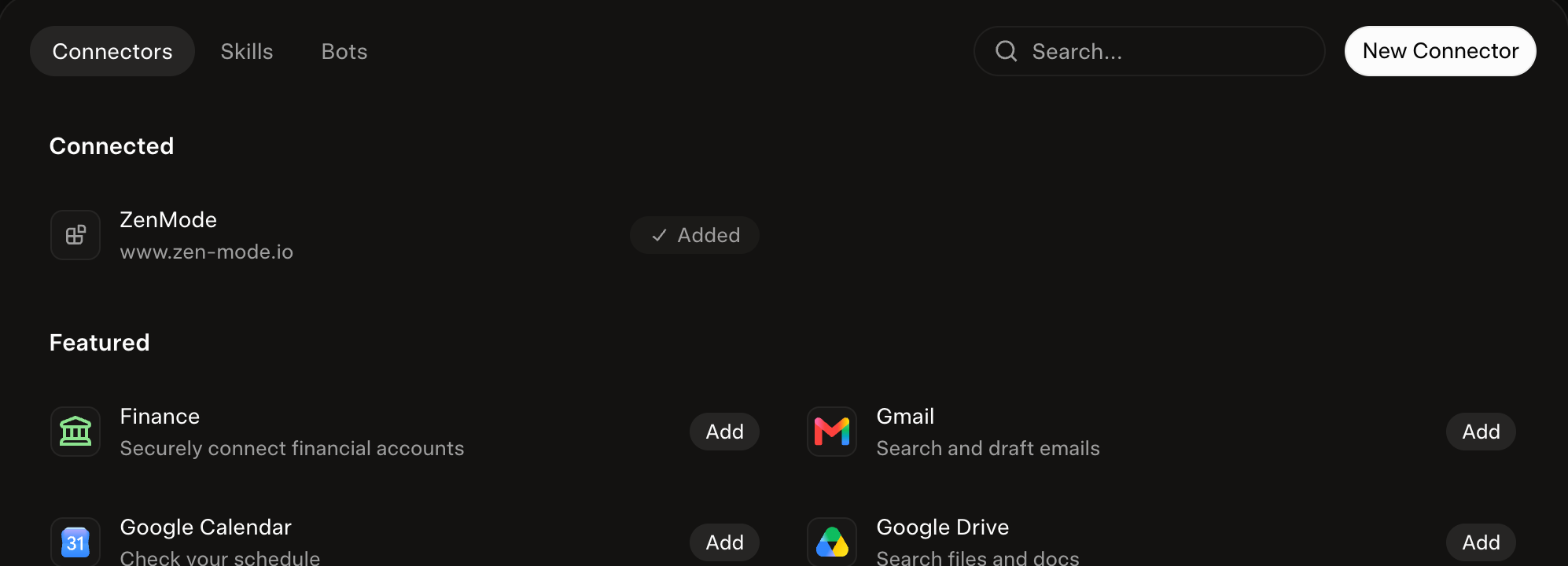
In Grok, open Plugins, then New Connector, then Custom. Name it ZenMode and enter https://www.zen-mode.io/api/mcp as the server URL. A ZenMode page opens: sign in, choose Read and change so the team can build campaigns, pick your API key and click Allow. Read only lets Grok look, nothing more.
Part 2
Check Grok Bot sees your account
Before you hand over a task, make sure Grok Bot is talking to the right ZenMode account with the right access. One read-only question settles it and costs nothing.
Read-only check, change nothing: call get_signal_credits and list_campaigns, and tell me the credits left, the renewal date, and the id and name of the newest campaign.
Now do it in ZenMode
Compare the answer with Signals and Campaigns in your dashboard. If the credits or the newest campaign do not match, Grok is connected to another account: open the connector, click Reauthenticate and sign in to the right one.
Part 3
Give the team one line
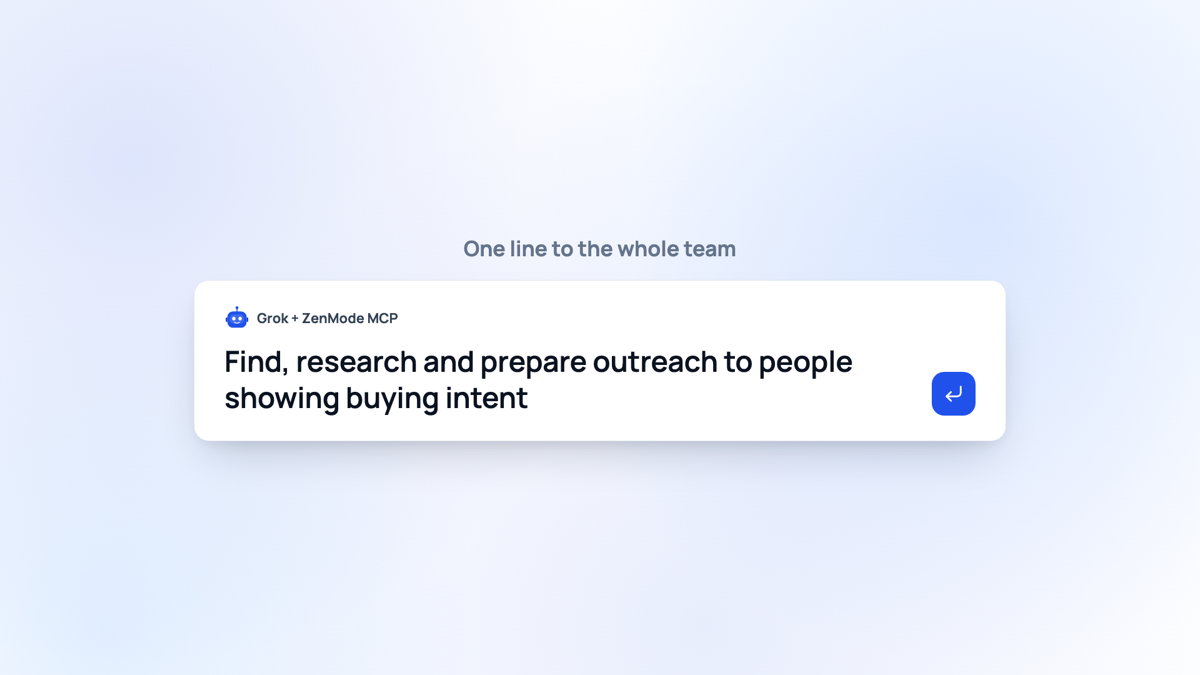
You do not brief six specialists one by one. One line, with your rules in it, and Grok Bot hands the work from one to the next.
Signal Hunter
- What it does
- Finds people showing buying intent
- ZenMode tool
- find_signal_leads
Researcher
- What it does
- Reads each person and their reason to talk
- ZenMode tool
- research_signal_lead
Copywriter
- What it does
- Writes each person's note and follow-ups, then checks them
- ZenMode tool
- research_signal_lead, validate_message
Campaign Builder
- What it does
- Builds the campaign, paused, and adds the people
- ZenMode tool
- create_campaign, add_signal_leads_to_campaign
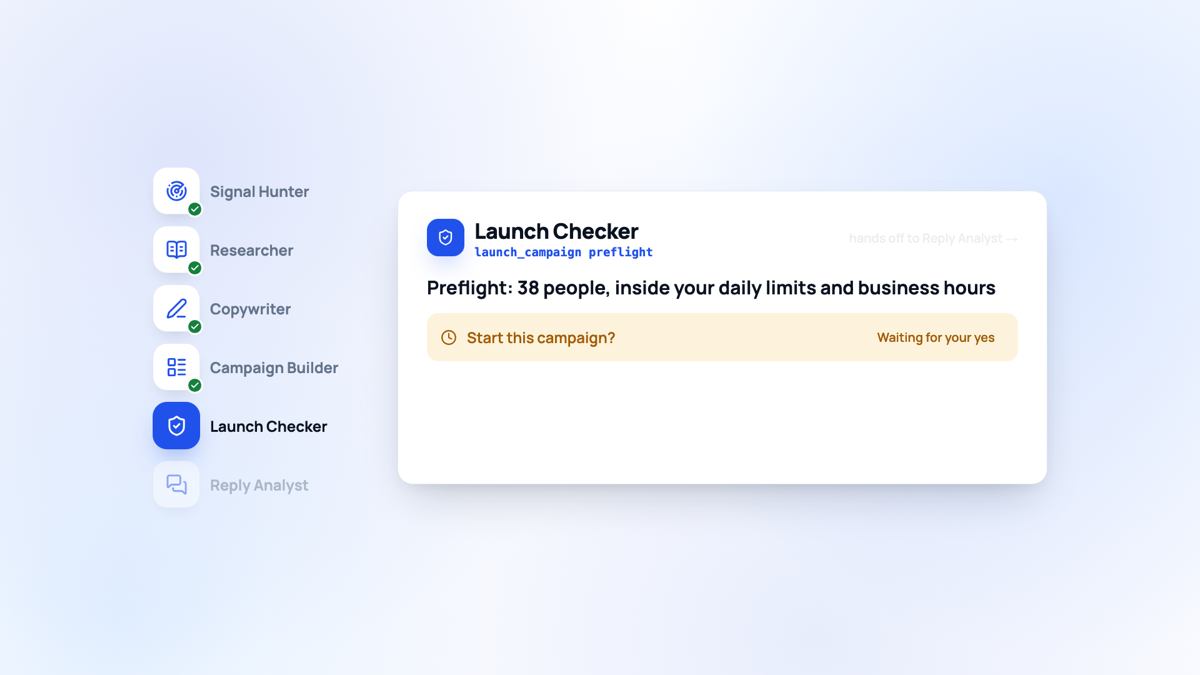
Launch Checker
- What it does
- Runs the launch check and waits for your yes
- ZenMode tool
- launch_campaign
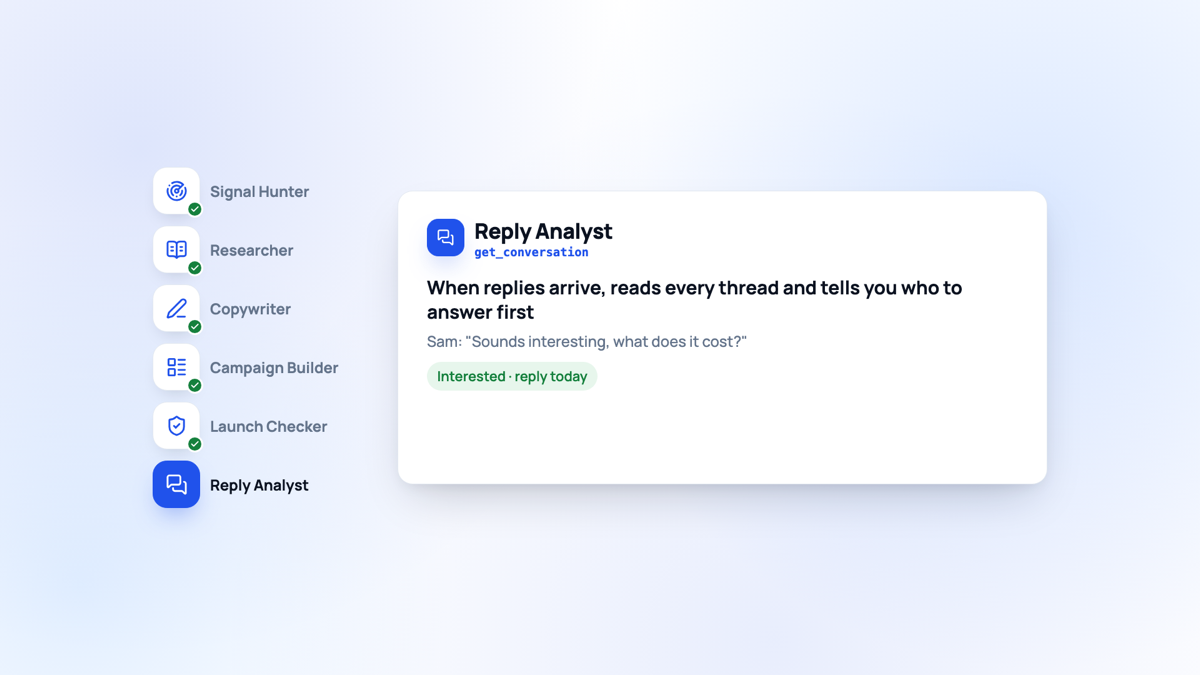
Reply Analyst
- What it does
- Reads replies and tells you who to answer first
- ZenMode tool
- get_conversation
Using ZenMode: find new people showing buying intent, research them and prepare outreach. Rules: find no more than [number] people. Before any step that spends credits, show me the cost and credits left and wait for my yes. Build the campaign paused. Run the launch check only and stop there. Do not start the campaign. End with a summary of what's ready.
Now do it in ZenMode
Open Signals in your dashboard while it works: the people the Signal Hunter finds appear there with the signal that surfaced them.
Part 4
Say yes before any credits are spent
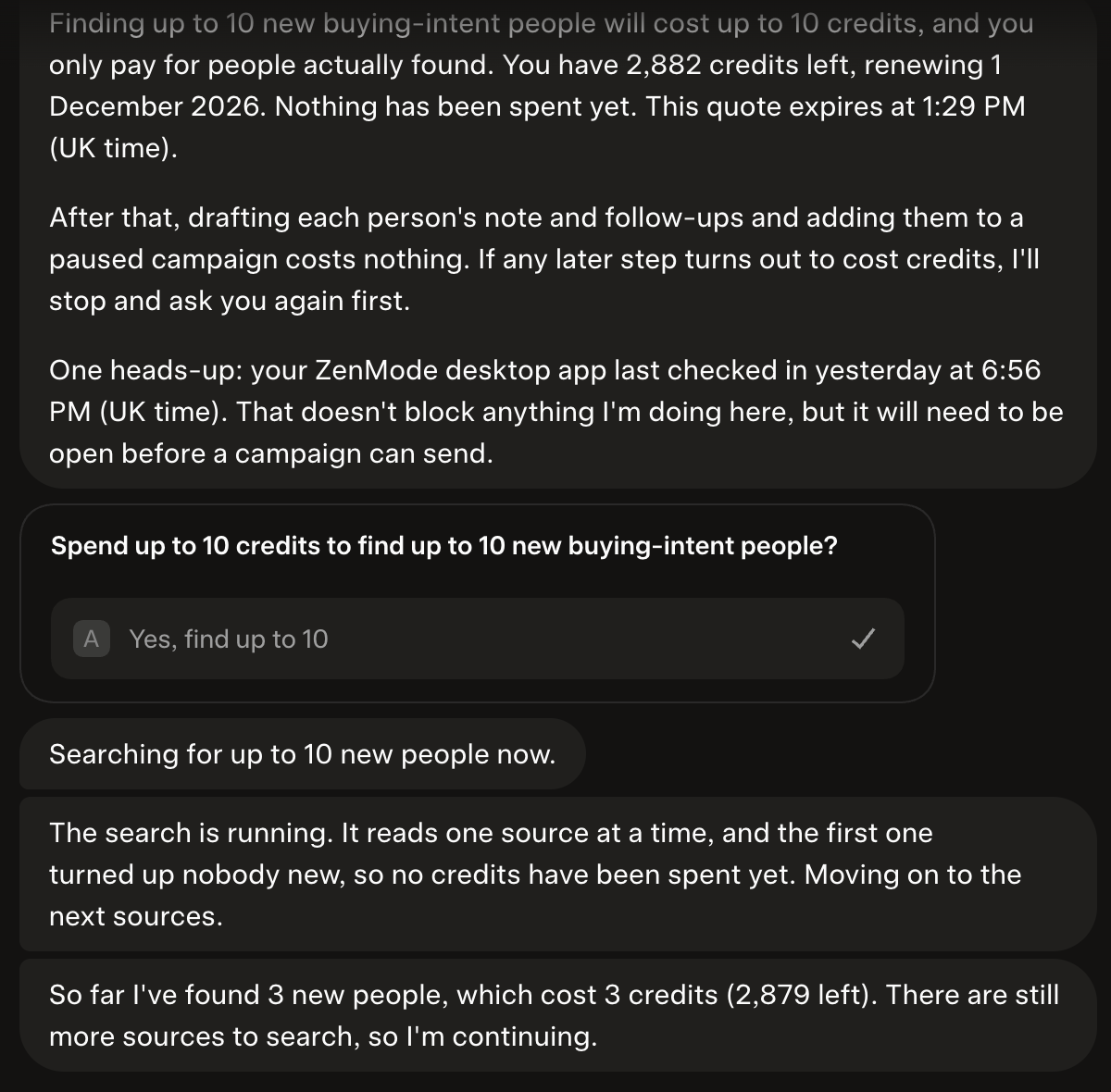
Finding people costs credits, so ZenMode never lets an assistant spend on its own. Grok Bot gets a quote first: the cost, the credits you have left, and a code that only works once. It has to show you that and wait.
Now do it in ZenMode
Grok Bot showed us the cost of up to 10 people, our credits left and when the quote expired, then waited. We said yes. You pay only for people actually found, and you can watch the credits counter in Signals go down as it finds them.
Part 5
Read the launch check, then decide
The Campaign Builder always creates the campaign paused. The Launch Checker then runs the same check the dashboard runs and tells you anything that would stop it, without starting anything.
Show me the launch check for [campaign name]: who it reaches, the exact messages, the daily limit and anything that would stop it. Do not start it until I say yes.
Now do it in ZenMode
Open the campaign in your dashboard: it is paused, with every person's messages in the contact list. When we ran it, the check found that our desktop app needed an update before the campaign could send. Starting it is your call. Your assistant can write messages, build a campaign and start it once you say yes. ZenMode then sends them within your daily limits and business hours, while the desktop app is open. Nothing is sent at the moment the assistant asks.
Part 6
Let the Reply Analyst read the replies
Once the campaign runs and people answer, the same chat can read the threads for you and tell you who to answer first. It reads; you reply.
Read the latest replies in [campaign name]. Tell me who sounds interested, what they asked, and who I should answer first today.
Now do it in ZenMode
Open each conversation from the campaign's contact list and reply yourself. To stop the campaign at any time, ask Grok Bot to pause it, or press Pause in the dashboard.
Print this
Before you say yes to Grok Bot
- Paid ZenMode plan (not Novice), desktop app installed
- ZenMode connected in Grok with Read and change
- Read-only check matches your dashboard
- Your one line includes a people limit and the stop rules
- Credit quote read before you said yes
- Campaign created paused
- Launch check read in full
- First people's messages read in the contact list
- You know how to pause it
Do this guide in ZenMode
ZenMode books you more meetings from LinkedIn: it finds the right people, writes the messages, and keeps every reply in one inbox. It is a desktop app for Mac and Windows that sends while the app is open. Every plan includes a 14-day free trial, first time only.
Start free trial