Free guide · reply templates · 6 parts
Turn LinkedIn replies into booked calls
What to send back to the six kinds of reply a LinkedIn campaign gets: interested, asks for information, not now, wrong person, not interested and a request to stop. Each with a fictional answer you can rewrite, the next step to log, and a daily routine so no good reply waits.
Free. The whole guide is on this page; no email needed.

I'm Jonathan. I build ZenMode: I write the code, answer the support emails, and my own outreach runs through it. A reply is where a campaign turns into a conversation, and it deserves a same-day answer. This guide is what I'd write back to each kind of reply, and the routine that keeps any of them from waiting. Questions: hello@zen-mode.io. I read everything.
Jonathan Lis · founder, ZenMode
Who it's for
Founders and small teams whose campaigns get replies, and who want more of those replies to end in a call.
You leave with
A written answer for each kind of reply, a calendar for your "not now" people, and a same-day reply routine.
What's inside
How it was put together
The six kinds of reply are the categories ZenMode's inbox uses. Every answer is fictional and written for this guide; the routine is our rule of thumb. Screenshots are ZenMode's demo with sample data. This guide promises no booking rate.
Part 1
Answer the same day
A reply is the person's attention, and attention does not wait. Check twice a day, answer the warm ones first, and never leave one for tomorrow because you have not worked out what to say: the rest of this guide is what to say.
Fill in
- When you check
- Two fixed times, inside your business hours
- Your calendar link
- One link, one meeting length
A reply arrives
Answer the same day
- InterestedLink + two timesCall booked
- Asks for informationAnswer first, then offerCall booked
- Not nowAsk for a monthDate in your CRM
- Wrong personAsk who is rightA new person to reach
- Not interestedThank themStop
- Request to stopConfirmStop
Now do it in ZenMode
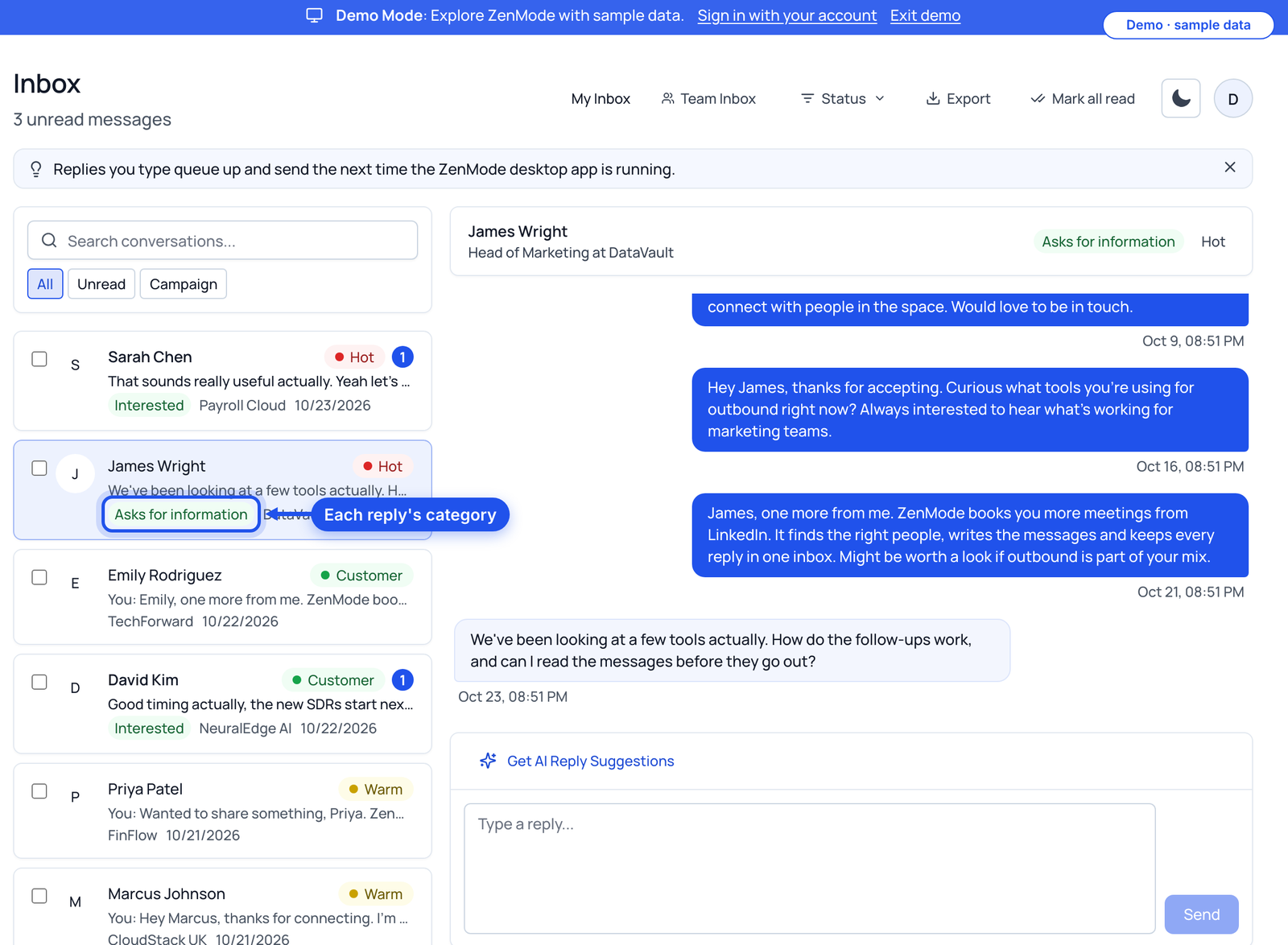
Open the inbox: replies from every campaign land in one place. On Practitioner and above each reply carries its category, so the interested and asks-for-information ones are easy to find first. Your reply sends while the ZenMode desktop app is open.
Part 2
Interested: make booking one step
They said yes. Every extra message between that yes and a time in the calendar is a chance to lose it. Offer a link and two times; let them pick.
Great. Here is my calendar: [link]. Or if it's easier, Tuesday at 10 or Thursday at 3 both work, and I'll send the invite.
Thursday at 3 works. Invite on its way; it'll be 15 minutes, and I'll bring an example set up for a team like yours.
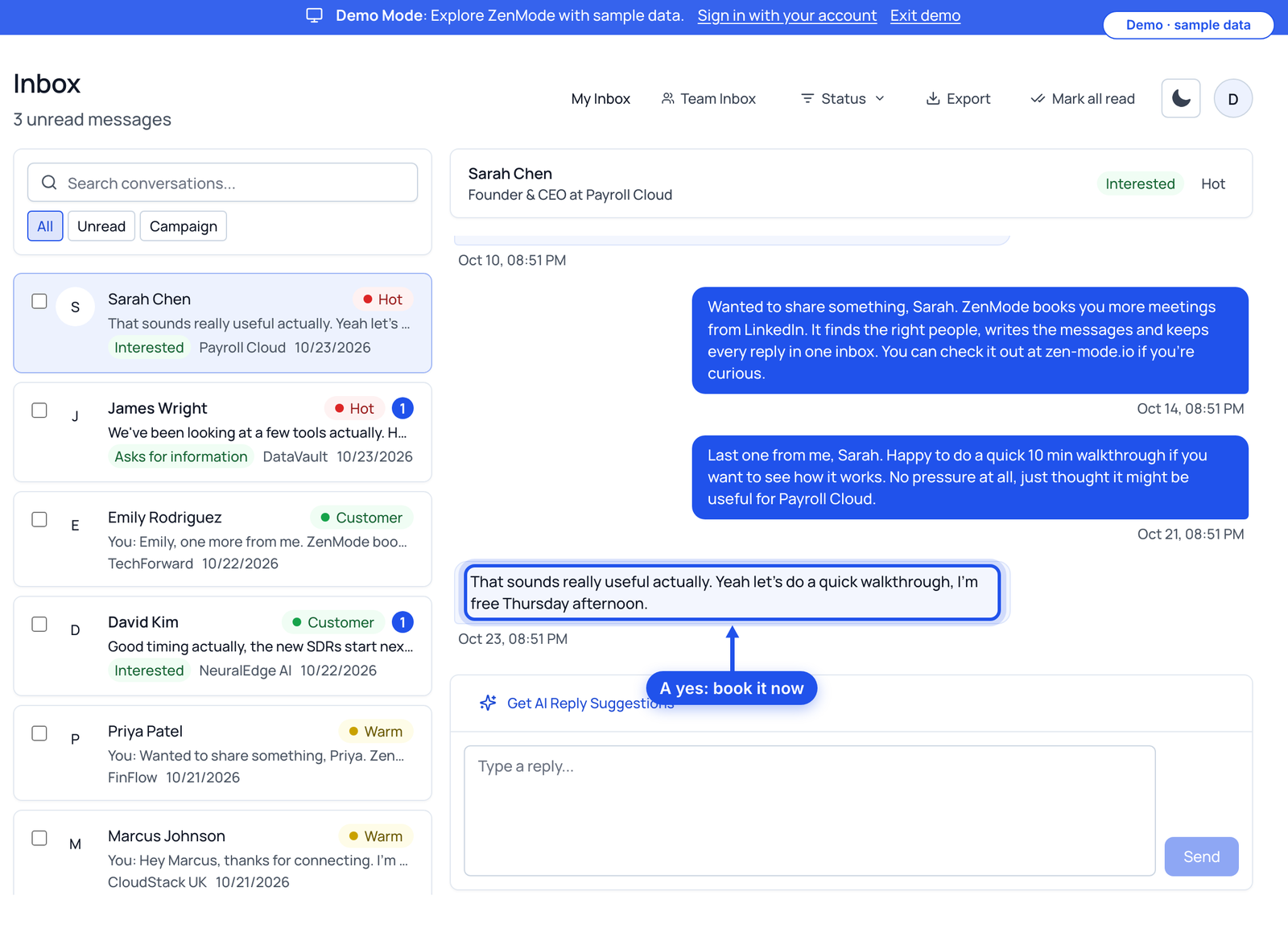
Now do it in ZenMode
Reply from the thread, then move the contact's stage in the built-in CRM so the call is tracked.
Part 3
Asks for information: answer first, then offer
A question is a buying signal with a condition. Answer it in two lines, in plain words, before you offer anything. An answer that dodges the question to push a call reads as a dodge.
Good question. [Two-line answer, no jargon.] If it helps, I can show you on a call in 15 minutes: [link].
Honest answer: I'm not sure for your setup. Can I check and come back to you by Friday?
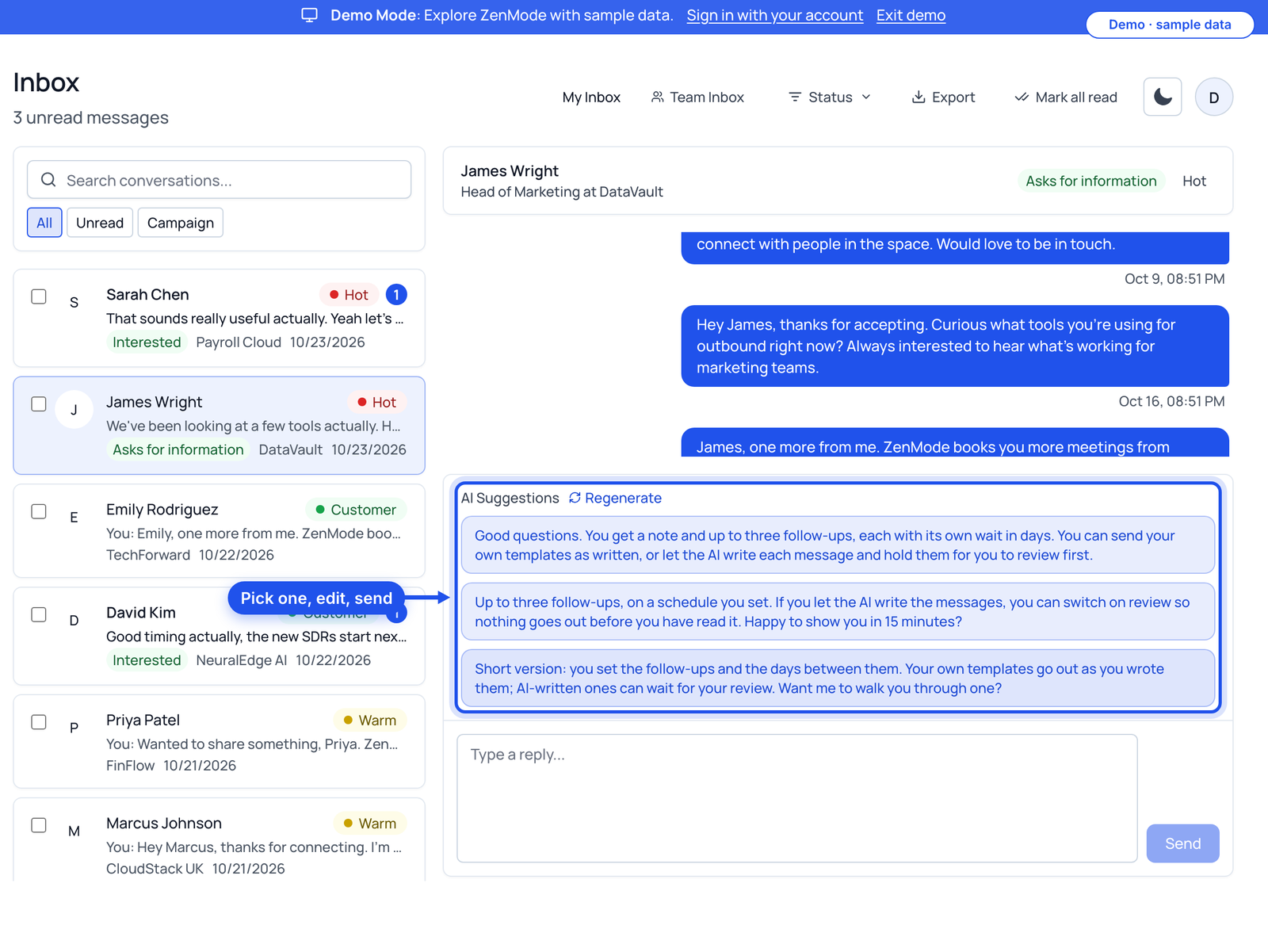
Now do it in ZenMode
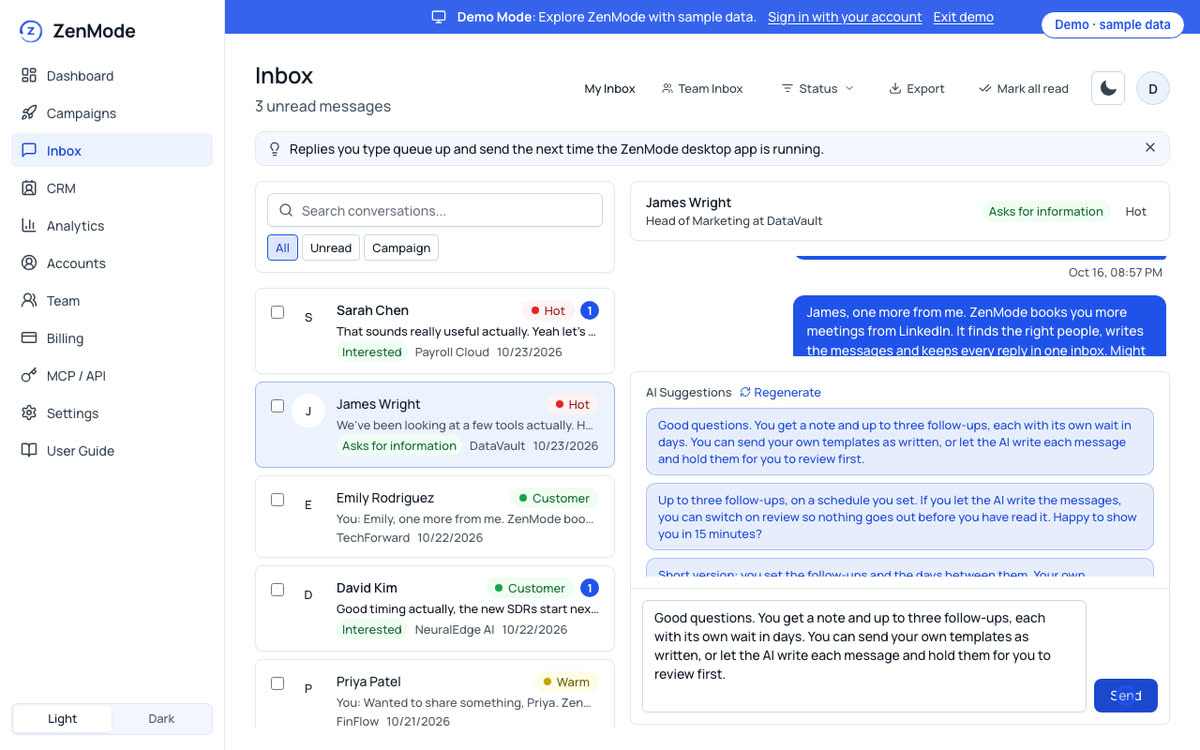
On plans with AI, press Get AI Reply Suggestions under the reply for three drafts based on the conversation. Pick one, edit it, and send it yourself.
Part 4
Not now: get a date, then keep it
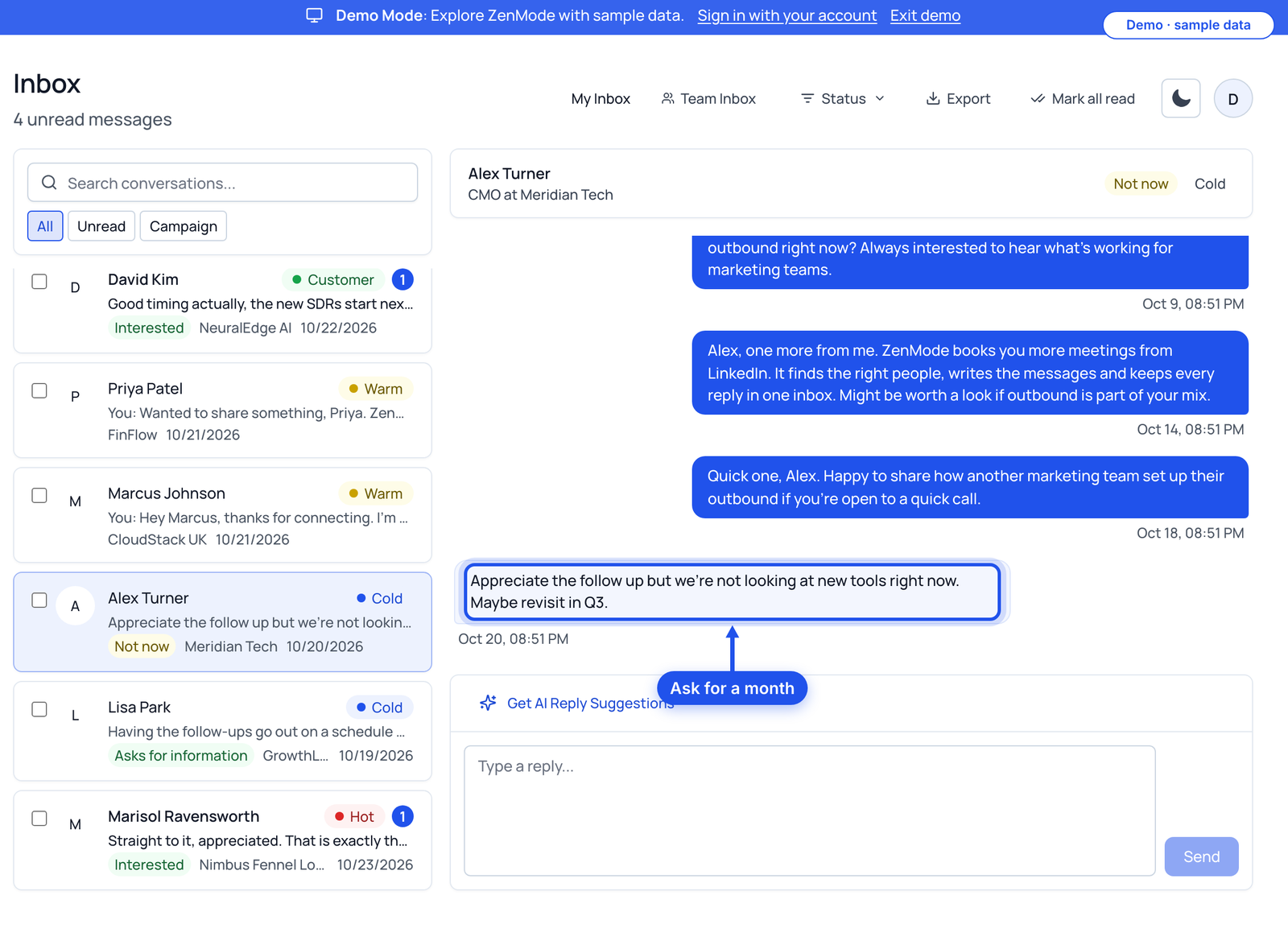
"Not now" is the most wasted reply in outreach, because nobody writes down when "now" is. Ask for a month, thank them, and put it in your CRM the same minute.
Fill in
- Not-now list
- Name, company, the month they named
Understood, thanks for saying. Would it make sense to check back in [month]? I'll keep it short.
Hi {{first_name}}, you mentioned [month] might be a better time for [problem]. Is it still on the list?
Now do it in ZenMode
Reply from the inbox, then set the contact's stage and note the month in the built-in CRM.
Part 5
Wrong person: ask who is right
A wrong person who answers you is the warmest path to the right one. Thank them, ask one specific question, and say you will mention them.
Thanks for letting me know. Who looks after [problem] at {{company}}? I'll mention you pointed me their way.
Hi [name], [colleague] suggested you're the right person for [problem] at {{company}}. Open to a short chat?
Now do it in ZenMode
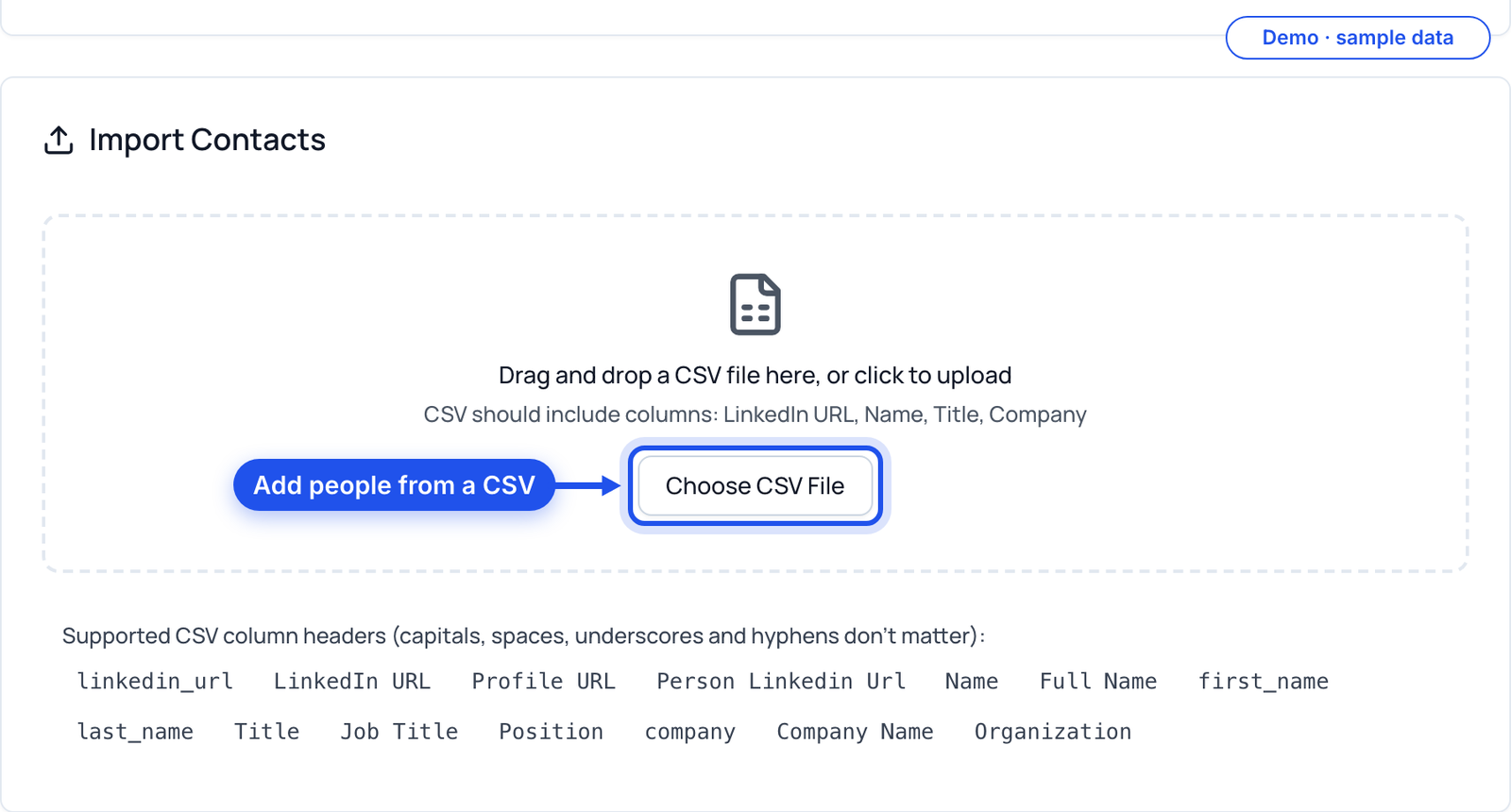
Answer in the inbox, then add the person they named to a campaign by pasting their profile into a CSV import, or message them yourself.
Part 6
Not interested or a request to stop: thank them and stop
A clear no is useful: it tells you something about your list or your message, and a polite last word keeps the door open. A request to stop gets exactly that, and nothing more.
Thanks for the straight answer, {{first_name}}. I'll leave it there.
Understood. You won't hear from me again.
| If you see a lot of | It says something about |
|---|---|
| Not interested | The offer, or who is on the list |
| Wrong person | The job titles in your targeting |
| Requests to stop | The list and the note: rebuild both before sending more |
Now do it in ZenMode
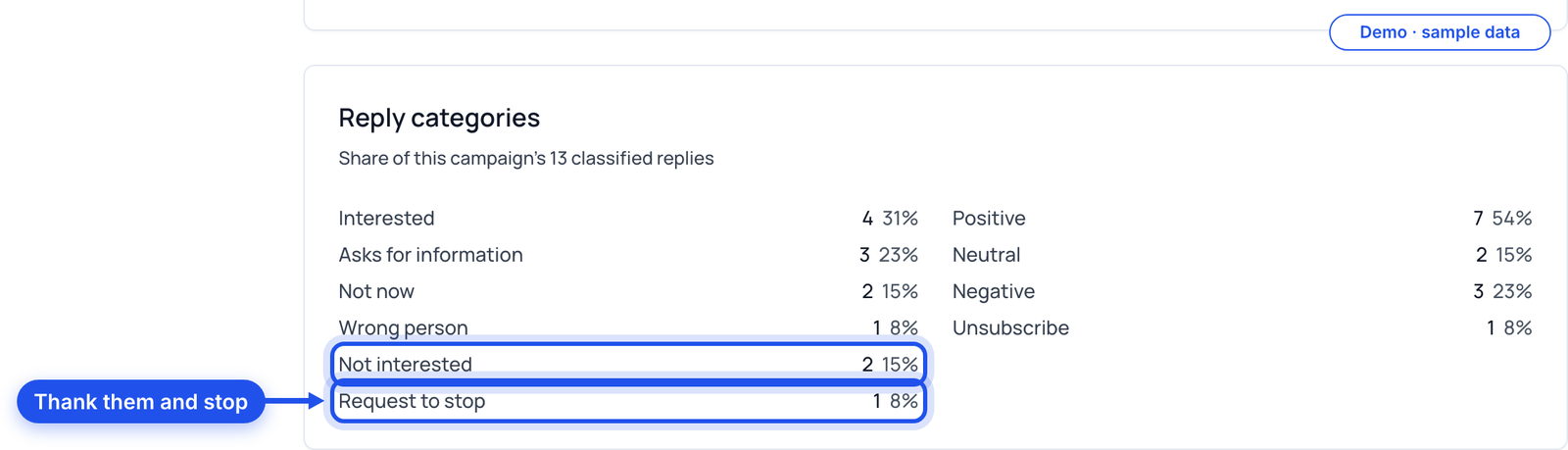
Each Friday, read the campaign's Reply categories card (Practitioner and above) to see how its replies split across the six kinds.
Print this
Your reply routine
- Inbox checked twice a day
- Interested: link plus two times, same day
- Asks for information: answer first, then offer
- Not now: month asked for and logged
- Wrong person: asked who is right
- Not interested: thanked, stopped
- Request to stop: confirmed, stopped
- CRM stage updated after every reply
- Reply categories read on Friday
Do this guide in ZenMode
ZenMode books you more meetings from LinkedIn: it finds the right people, writes the messages, and keeps every reply in one inbox. It is a desktop app for Mac and Windows that sends while the app is open. Practitioner, Master and Dojo include a 14-day free trial, first time only.
Start your 14-day free trial