Free guide · prompts · 6 parts
Run your LinkedIn outreach from Claude or ChatGPT
Connect ZenMode to the AI assistant you already use, then build, check and start a LinkedIn campaign by asking for it. Six prompts to paste, in the order that keeps you in control: nothing starts until you have read a summary and said yes.
Free. The whole guide is on this page; no email needed.

I'm Jonathan. I build ZenMode: I write the code, answer the support emails, and my own outreach runs through it. If you already work in Claude or ChatGPT, you can build and start a ZenMode campaign from the same window. This guide is the order that keeps you in control: nothing starts until you've read a summary and said yes. Questions: hello@zen-mode.io. I read everything.
Jonathan Lis · founder, ZenMode
Who it's for
Founders who already work in Claude or ChatGPT and would rather describe a campaign than click through one. Paid ZenMode plans except Novice.
You leave with
ZenMode connected to your assistant, a campaign built and checked from a chat, and the prompts to do it again.
What's inside
How it was put together
What the assistant can do is what ZenMode's MCP tools do today, checked on 23 October 2026. Prompts are ours; edit them freely. Screenshots are ZenMode's demo with sample data, showing the campaign page where a campaign built from a chat appears.
Part 1
Connect ZenMode to your assistant
MCP is a standard way to give an AI assistant tools. Once ZenMode is connected, the assistant can work on your campaigns when you ask, and only when you ask.
| You need | Where |
|---|---|
| A paid ZenMode plan except Novice | Practitioner, Master or Dojo |
| An assistant that supports MCP | Claude, ChatGPT and others: step-by-step guides at zen-mode.io/mcp |
| The ZenMode desktop app | It sends while the app is open, on Mac or Windows |
Now do it in ZenMode
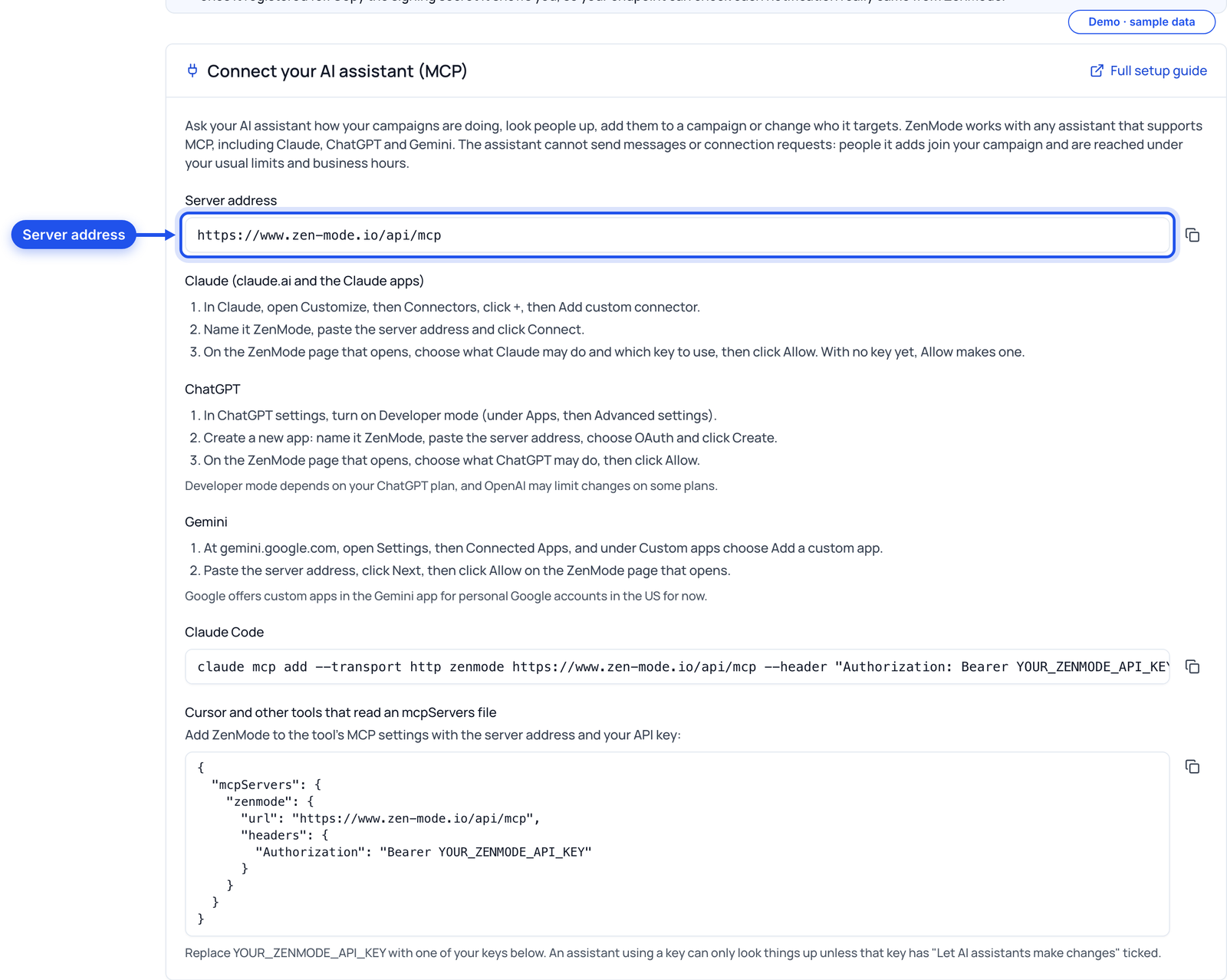
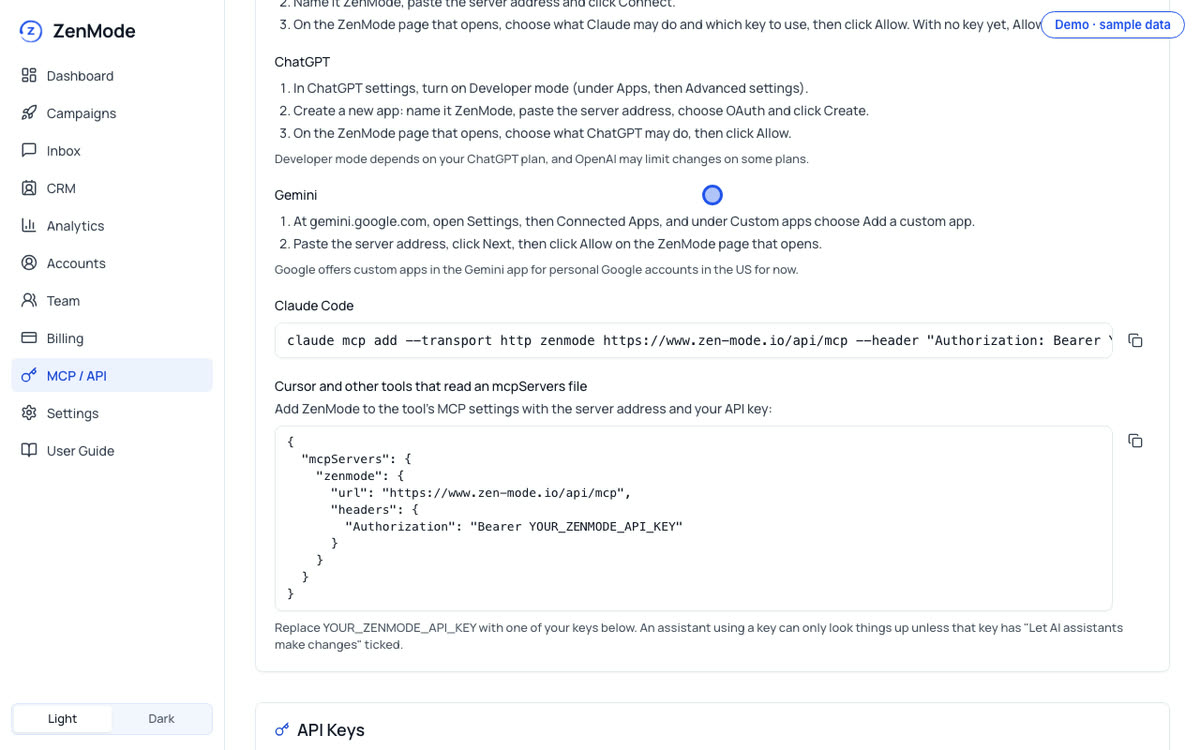
Open MCP / API in the ZenMode dashboard and create an API key. In your assistant, add a custom connector with the server address https://www.zen-mode.io/api/mcp. A ZenMode page opens: sign in if asked, choose what the assistant may do and the API key to use, and click Allow.
Part 2
Describe your buyer
The assistant is only as good as what you tell it. Give it your buyer and your problem in plain words before you ask for anything.
I sell [what you sell] to [job title] at [kind of company, size, country]. The problem I solve is [one line]. What changes for them is [one line].
Keep this in mind for everything we do next. Ask me anything you need to know before we build a campaign.
Now do it in ZenMode
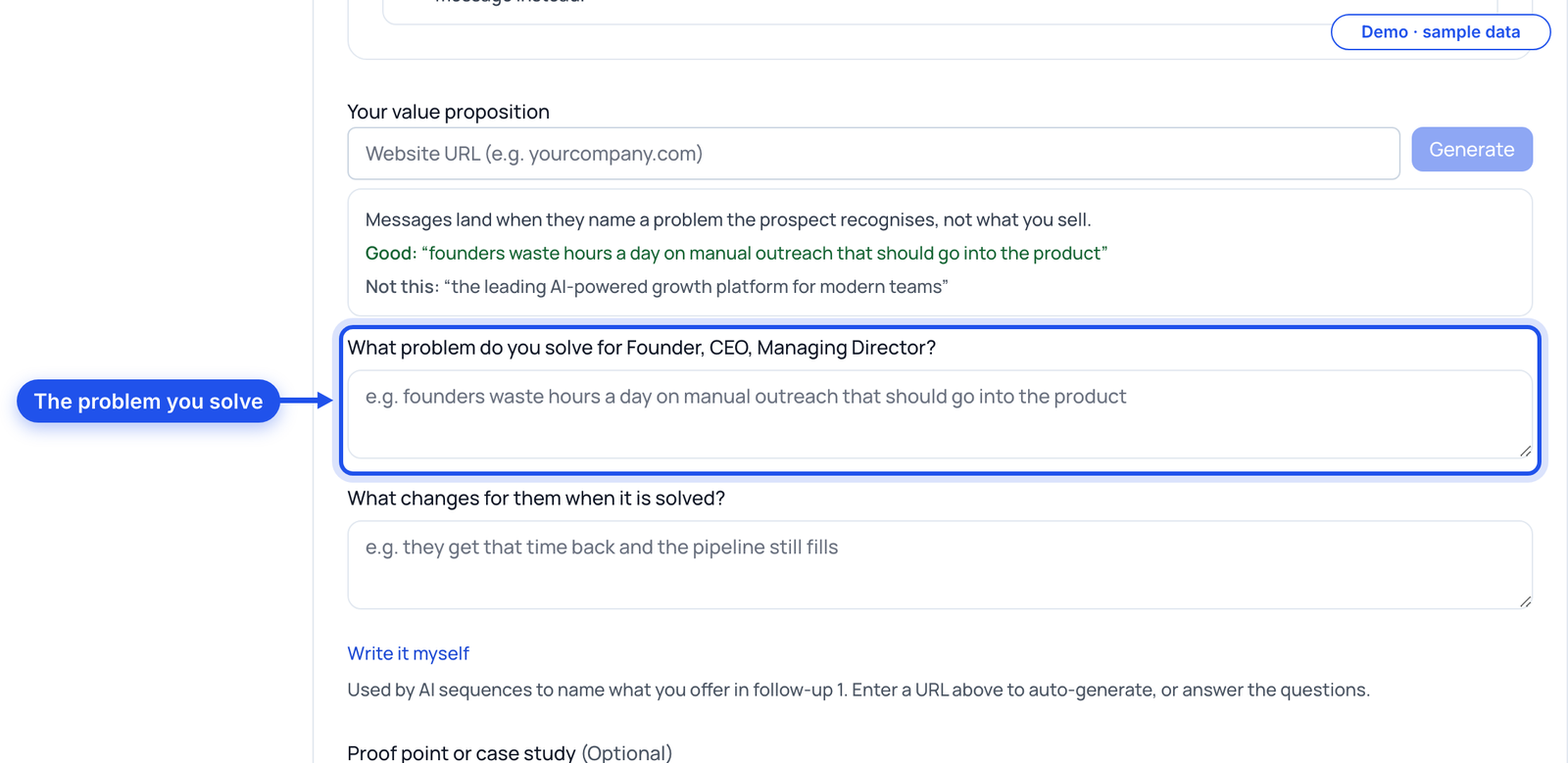
Write the same problem line into a campaign's value proposition, so the dashboard and the chat start from the same words.
Part 3
Draft the messages and check them
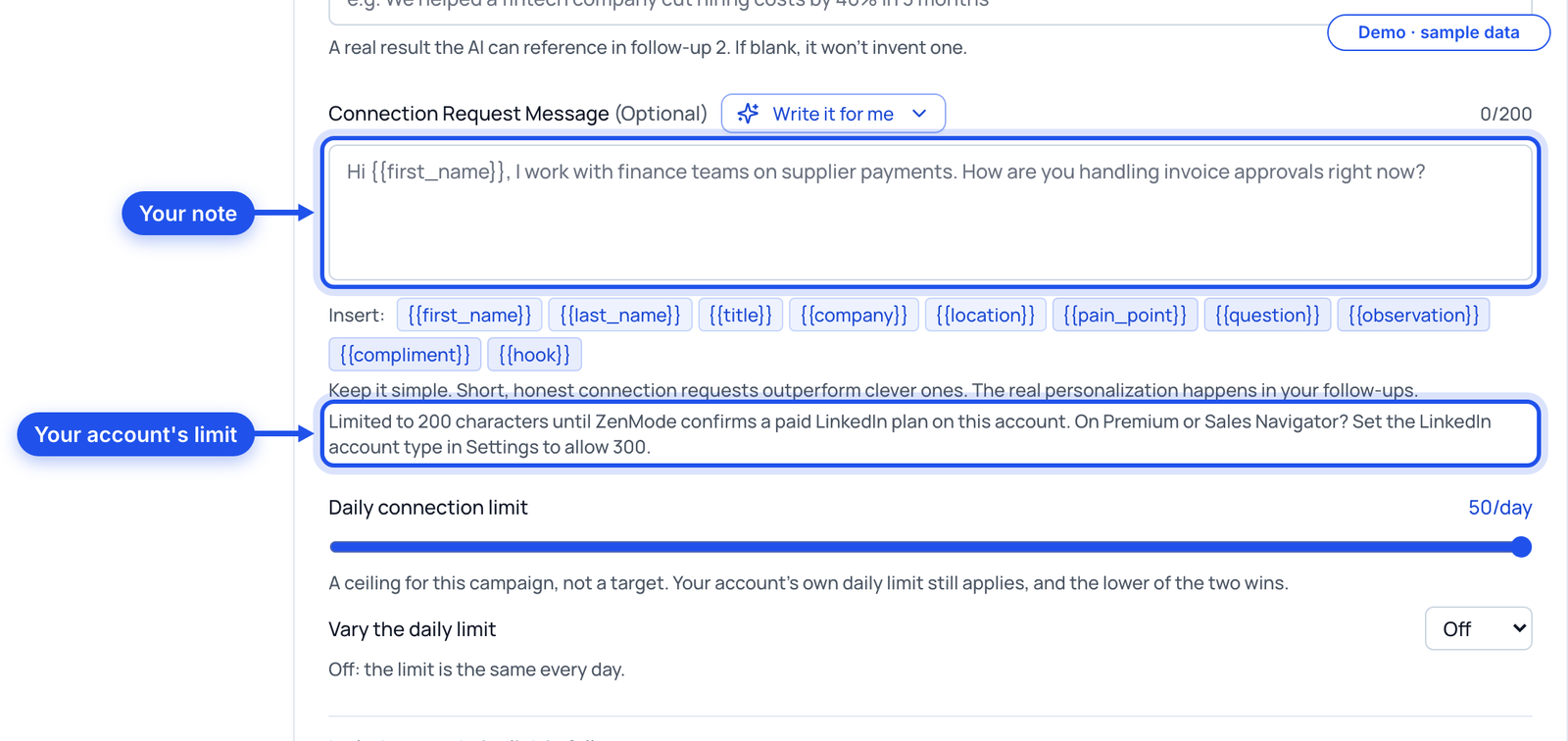
Ask for drafts, then ask ZenMode to check each one before it goes anywhere near a campaign. The check uses your account's real note limit.
Draft a LinkedIn connection note under 200 characters and three follow-ups for the buyer above. Each follow-up gives one new reason to reply. Use {{first_name}} and {{company}}.
Then check every message with ZenMode and show me any issue it finds, with your fix.
Now do it in ZenMode
The assistant runs ZenMode's message check on each draft and tells you what fails, so you fix it before the messages go into a campaign.
Part 4
Create the campaign, paused
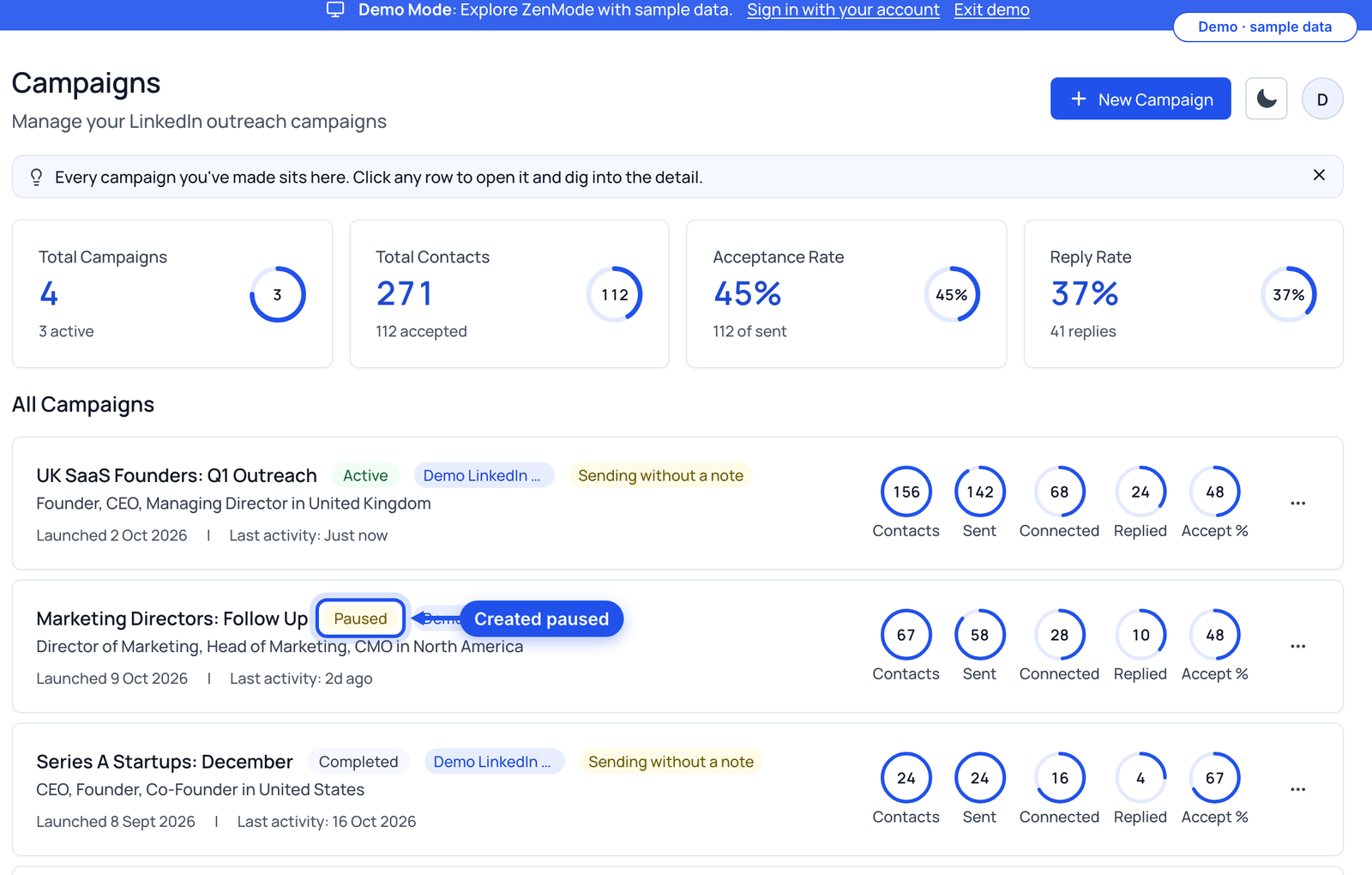
A campaign made from a chat is always created paused. You can look at it in the dashboard before anything else happens.
Create a Connect campaign called [name] targeting [job titles] in [locations], with a daily limit of [number]. Set the messages we just checked. Do not start it.
Now do it in ZenMode
Open Campaigns in the dashboard: the new campaign is there, paused, with your messages in its boxes.
Part 5
Read the summary, then say yes
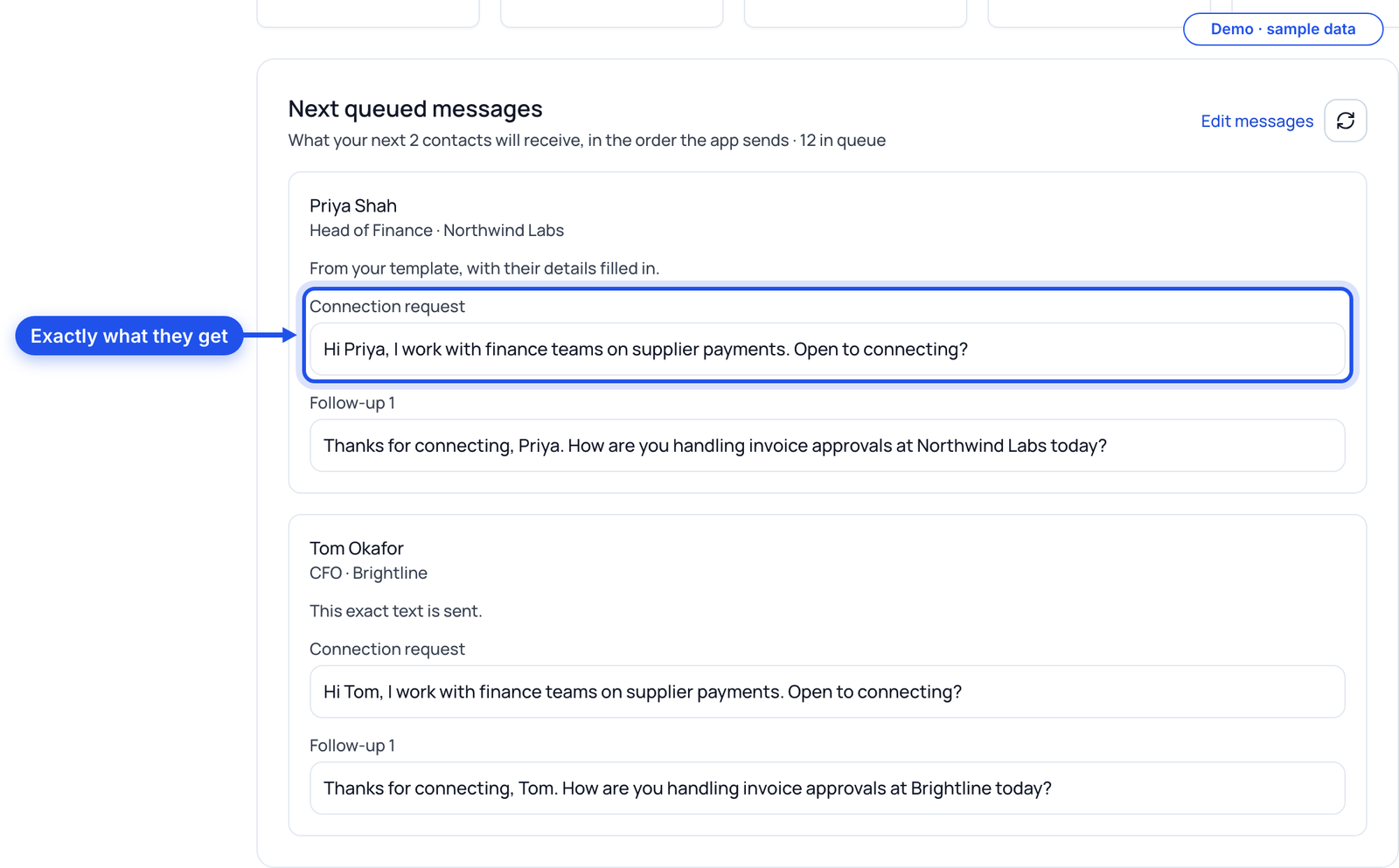
Starting a campaign is two steps on purpose. First the assistant shows you a plain summary: who it will reach, the messages, the limits. Only after you say yes does it start.
Show me the launch summary for [campaign name]: who it targets, the exact messages, the daily limit and anything that would stop it. Do not start it until I say yes.
Now do it in ZenMode
Check the same thing in the dashboard: Next queued messages shows what the next people will receive, with their details filled in.
Part 6
Pause from the chat at any time
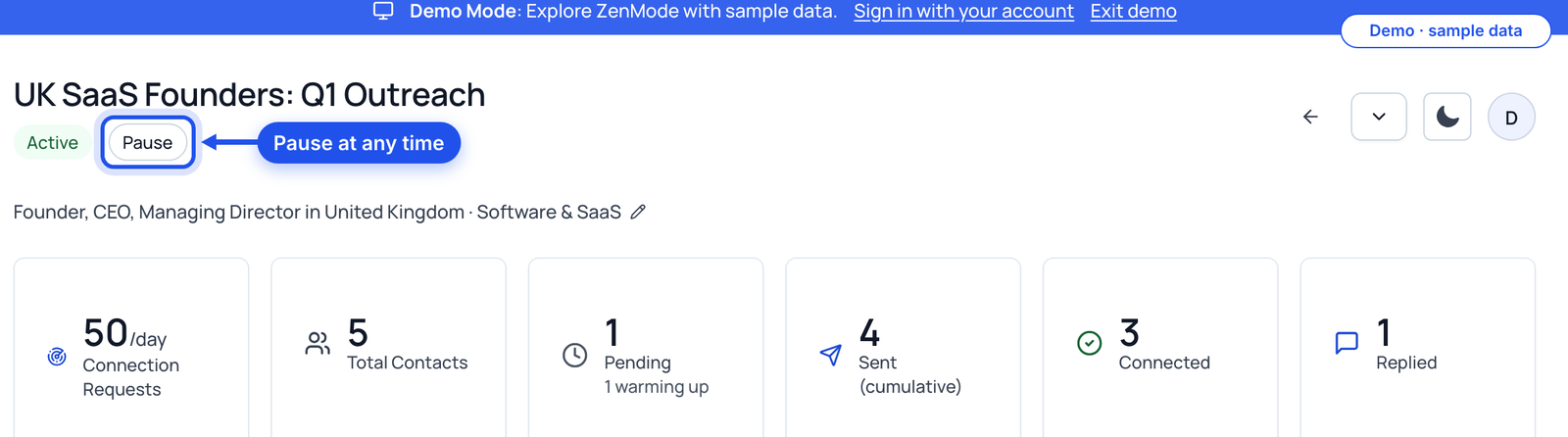
The same assistant that started it can stop it. If a reply, a doubt or a change of plan comes up, pause first and decide after.
Pause [campaign name].
Now do it in ZenMode
The campaign shows as paused in the dashboard, and you resume it when you are ready.
Print this
Before you say yes in the chat
- Paid plan (not Novice), desktop app installed
- ZenMode connected in your assistant
- Buyer and problem described
- Every message checked by ZenMode
- Campaign created paused
- Campaign opened in the dashboard
- Launch summary read in full
- Next queued messages read
- You know how to pause it
Do this guide in ZenMode
ZenMode books you more meetings from LinkedIn: it finds the right people, writes the messages, and keeps every reply in one inbox. It is a desktop app for Mac and Windows that sends while the app is open. Practitioner, Master and Dojo include a 14-day free trial, first time only.
Start your 14-day free trial