Free guide · worksheet · 7 parts
Launch your first LinkedIn campaign, step by step
For founders who sell B2B and do their own outreach. Fill in seven short parts and you have a LinkedIn campaign ready to launch: the one-line problem you solve, a list you can finish, a note, three follow-ups that each give a new reason to answer, a schedule, your answers to the first replies, and a short Friday review.
Free. The whole guide is on this page; no email needed.

I'm Jonathan. I build ZenMode: I write the code, answer the support emails, and my own outreach runs through it. This is the worksheet I'd hand a founder who knows their customer but has never put LinkedIn outreach on a schedule: seven short parts, each ending in the step done in ZenMode. Questions: hello@zen-mode.io. I read everything.
Jonathan Lis · founder, ZenMode
Who it's for
Founders and small B2B teams with no SDR, who know their customer but have not put LinkedIn outreach on a schedule.
You leave with
A filled-in worksheet you can paste into ZenMode or any outreach tool, and a printable checklist for your first week.
What's inside
How it was put together
LinkedIn limits are quoted from LinkedIn's Help pages. Everything else is a rule of thumb, labelled as ours. Screenshots are ZenMode's demo with sample data, not customer results. This guide quotes no reply rates and promises none: your numbers come from your own Friday review.
Part 1
Write the one-line problem
Every message you send later is a version of this line. People answer a problem they recognise; they ignore a description of your product. If you cannot write it in one line, the note and the follow-ups will not be clearer.
Fill in
- Who has the problem
- A job title and a kind of company: "heads of finance at 20 to 200 person software companies"
- What it costs them today
- In their words, not yours: hours, a missed number, a manual step they hate
- What changes when it is solved
- One outcome they would say out loud to their boss
We are an AI-powered platform for modern finance teams.
Heads of finance at growing software companies lose the last week of every month to chasing invoice approvals by email.
Here is my website: [paste your home page text]. Here are my last three customers and why they bought: [one line each].
Write five one-sentence descriptions of the problem I solve, each from the buyer's side. Name the job title and the cost of the problem in plain words. Do not describe my product, do not use the words "AI", "platform" or "solution", and do not invent numbers.
Now do it in ZenMode
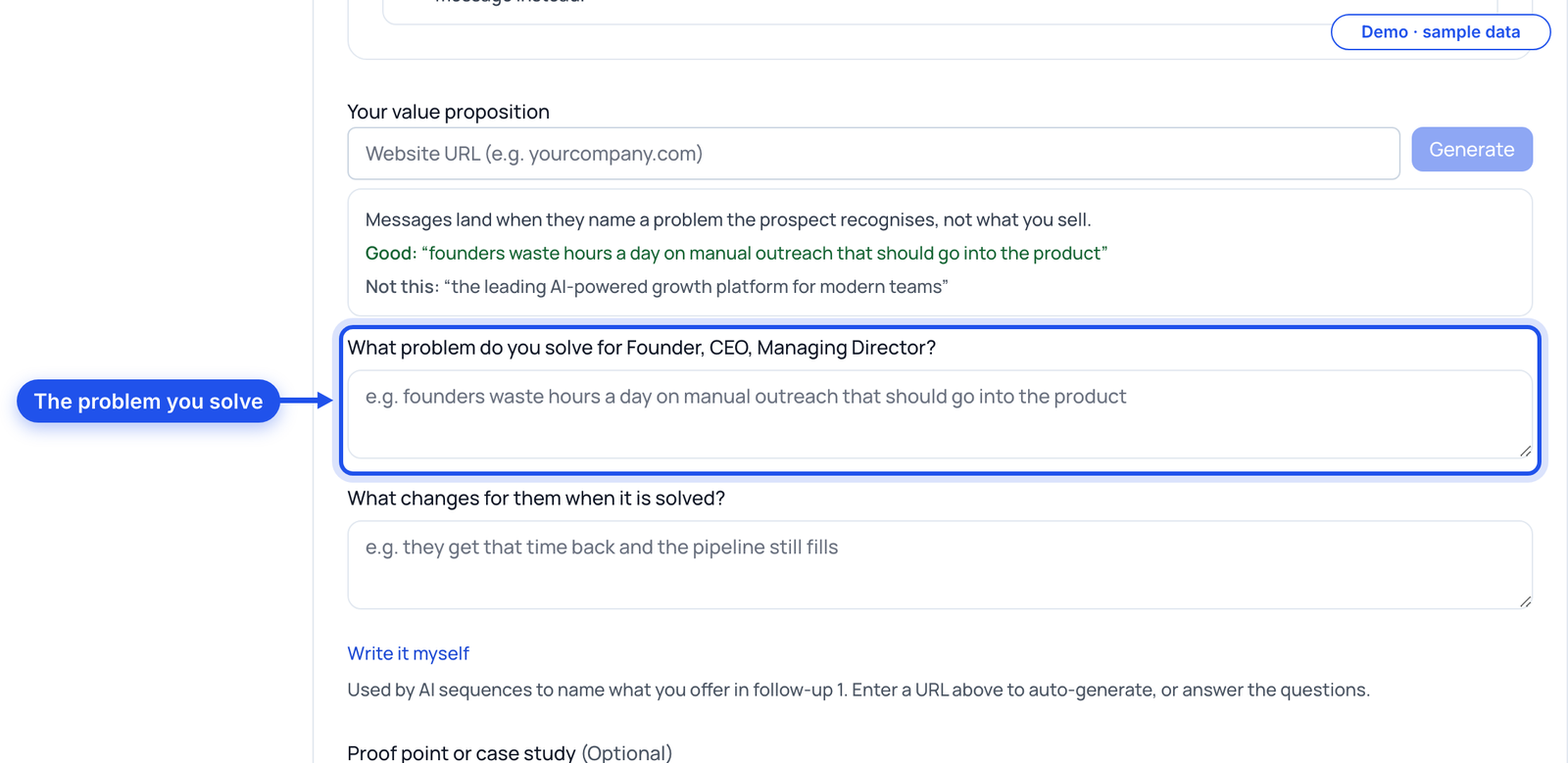
Open a new campaign and fill in your value proposition: the problem you solve and what changes when it is solved. ZenMode can read your website and draft it; you edit it before anything uses it.
Part 2
Build a list you can finish
A list of thousands of people you will never reach is not a plan. Start from the people who already bought from you, describe them in LinkedIn's terms, and size the list to the pace you will actually run.
Fill in
- Your last three customers
- The buyer's job title, company size, country, industry
- What they have in common
- The two or three fields that repeat: that is your first list
- Who to leave out
- Competitors, current customers, people you already talk to, job titles that cannot buy
- Your list size
- Your daily ceiling × active days per week × the weeks you plan to run. Build about that many, not ten times more
| Way in | Use it when |
|---|---|
| Job titles, industries and locations | You can describe the buyer in LinkedIn's own fields |
| A LinkedIn or Sales Navigator search URL | You already built and saved a search you trust |
| A CSV | You have a list from an event, a CRM export or your own research |
Now do it in ZenMode
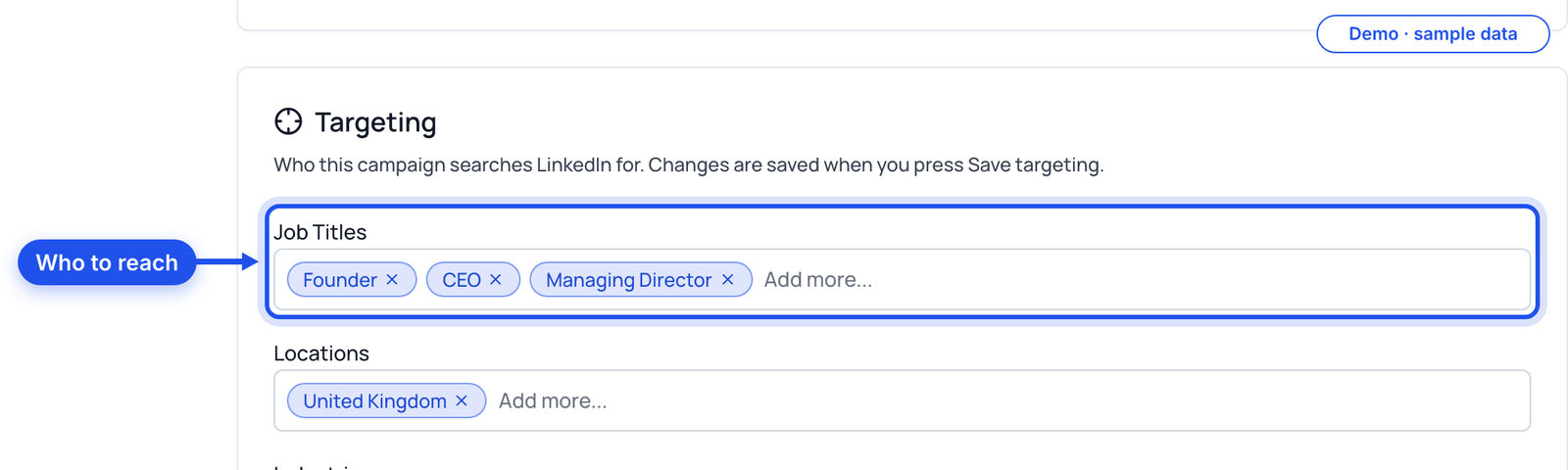
Set the campaign's targeting one of those three ways. Leave "Skip people already in your other campaigns" on, so nobody gets two sequences from you.
Part 3
Write the connection note
The note is a reason to accept, not a pitch. One true detail about them, one reason you are writing, no ask.
Fill in
- One detail about them
- Their role, their company's market, something they posted. Nothing you would have to guess
- Why you are writing
- Your one-line problem from part 1, shortened
- Length check
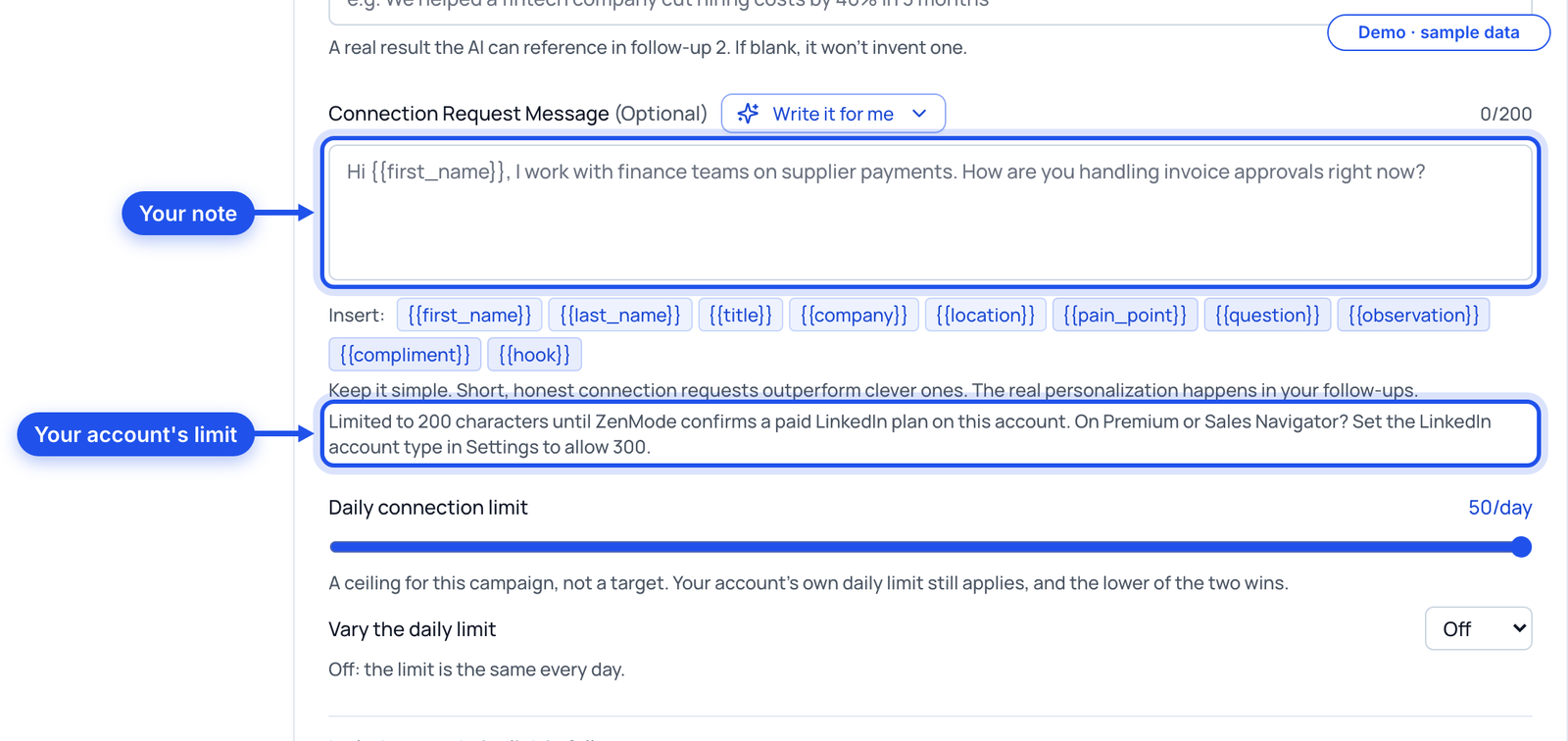
- LinkedIn's Help page: "Each message can be up to 200 characters." Write to 200
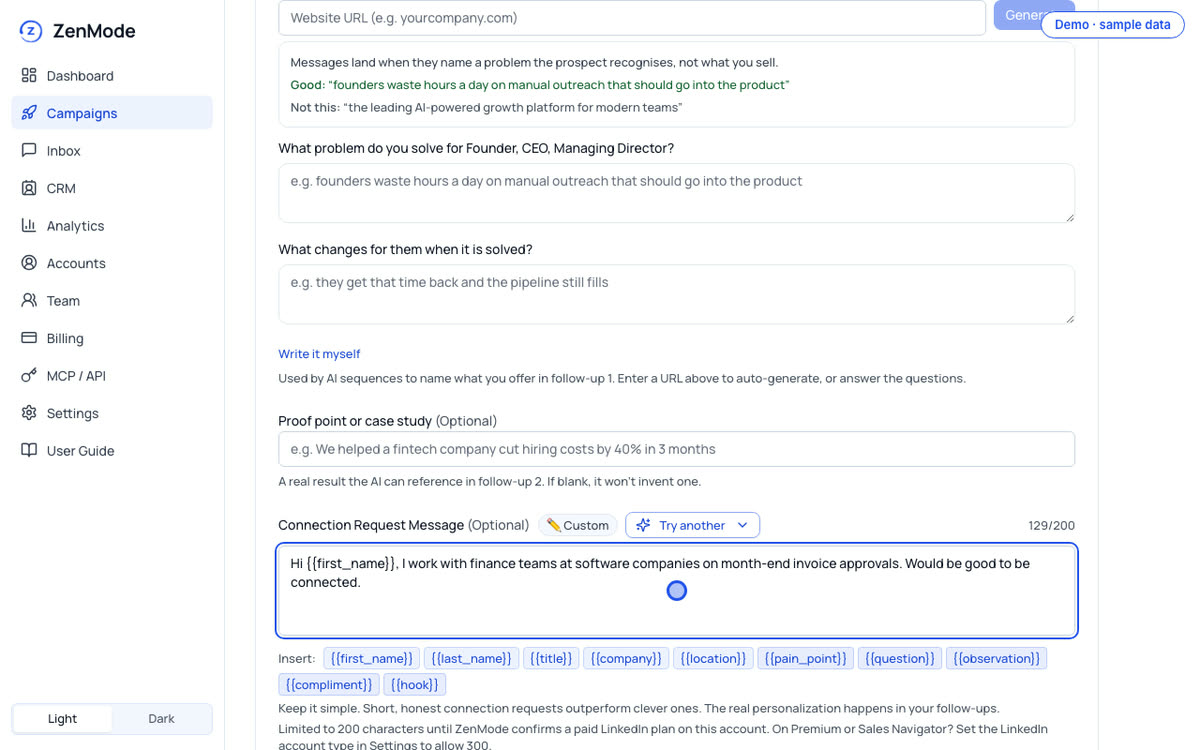
Hi Priya, I work with finance teams at software companies on month-end invoice approvals. Would be good to be connected.
Hi Tom, I spend my days on how growing finance teams handle supplier payments, and Brightline looks like one. Happy to connect.
Here is the person: [name, job title, company, one thing they posted or their company does]. Here is the problem I solve: [your line from part 1].
Write three LinkedIn connection notes under 200 characters. Each one names one real detail from what I gave you, says in plain words why I am writing, and asks for nothing. If I gave you no detail, write a role-level note and do not invent one.
Now do it in ZenMode
Paste your note into the campaign, or let the AI draft one into the box for you to edit. The counter shows the limit for your LinkedIn account type. A free LinkedIn account sends invitations without notes, and the campaign tells you so.
Part 4
Write three follow-ups, each with a new reason
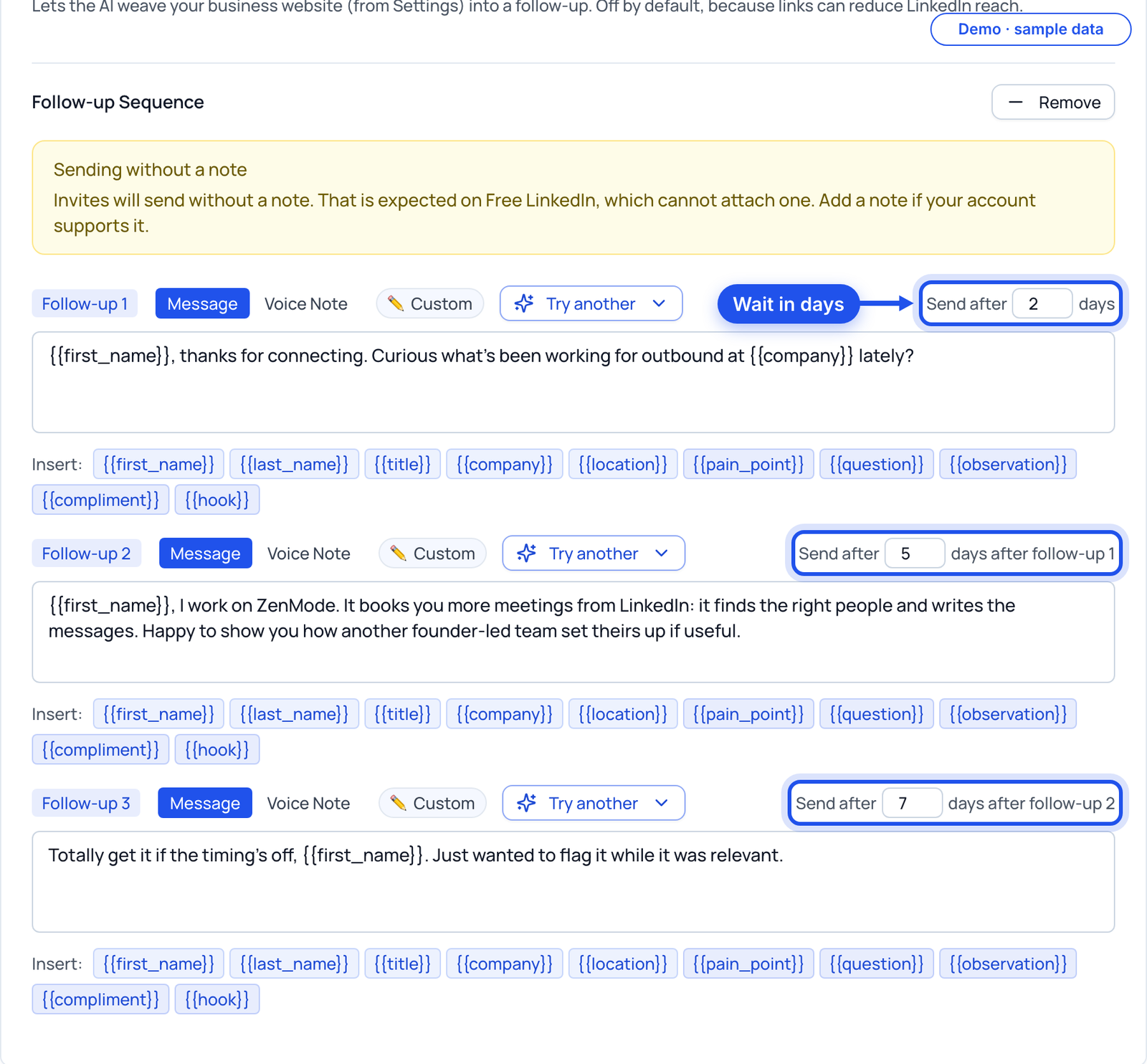
"Just bumping this" gives nobody a reason to answer. Each follow-up should add one thing the last message did not have. Three is our default: enough to be seen, few enough to stay welcome.
Fill in
- Follow-up 1, after they accept
- A question about how they handle the problem today. Easy to answer in one line
- Follow-up 2
- Something useful with no strings: a checklist, a short teardown, a number from a public source
- Follow-up 3
- A clear, small ask with an easy way out
| Reason bank | Sounds like (fictional) |
|---|---|
| How do they do it today? | How are invoice approvals handled at Northwind right now: email, or a tool? |
| Something you made | We wrote up the month-end approval checklist we use with customers. Want it? |
| Something that changed for them | Saw you opened the Dublin office. Does that change how approvals work? |
| A small ask | Worth 15 minutes to compare notes? If not, no problem at all. |
| The easy out | If this is not on your plate, tell me and I will not follow up again. |
Now do it in ZenMode
Put each follow-up in its own box and set its wait in days. Your templates go out as written, with fields like the first name filled in. If you choose "AI writes every message" instead, you can have each message held for your review before it sends.
Part 5
Set the schedule
Send on the days and hours you can answer, and set a daily number you would be comfortable defending. A reply that waits two days for you is a reply going cold.
Fill in
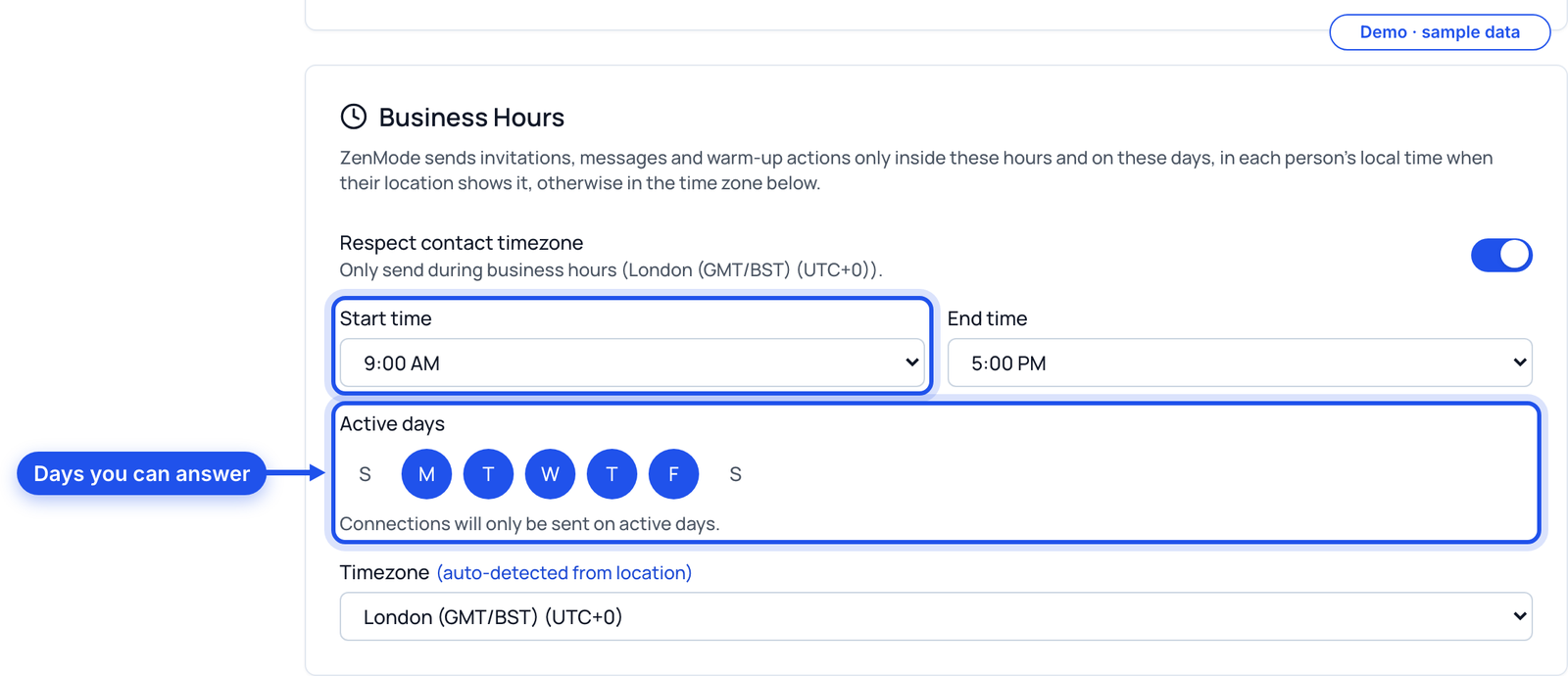
- Active days
- The days you will be around to reply
- Business hours
- In the buyer's time zone where you can
- Daily ceiling
- A ceiling, not a target. Start lower than you think
Now do it in ZenMode
Set Active days, Business Hours and the Daily connection limit on the campaign. ZenMode spaces actions a few minutes apart inside them, and the limit is a ceiling, not a quota. ZenMode is a desktop app for Mac and Windows that sends while the app is open.
Part 6
Answer the first replies
Most replies fall into a handful of kinds. Decide now how you answer each, so a good reply never waits while you think.
Fill in
- Your calendar link
- One link, one meeting length
- Who answers, and when
- Same day, inside your business hours
| They say | You answer (fictional) |
|---|---|
| Interested | Great. Here is my calendar: [link]. Or tell me two times that work and I will send the invite. |
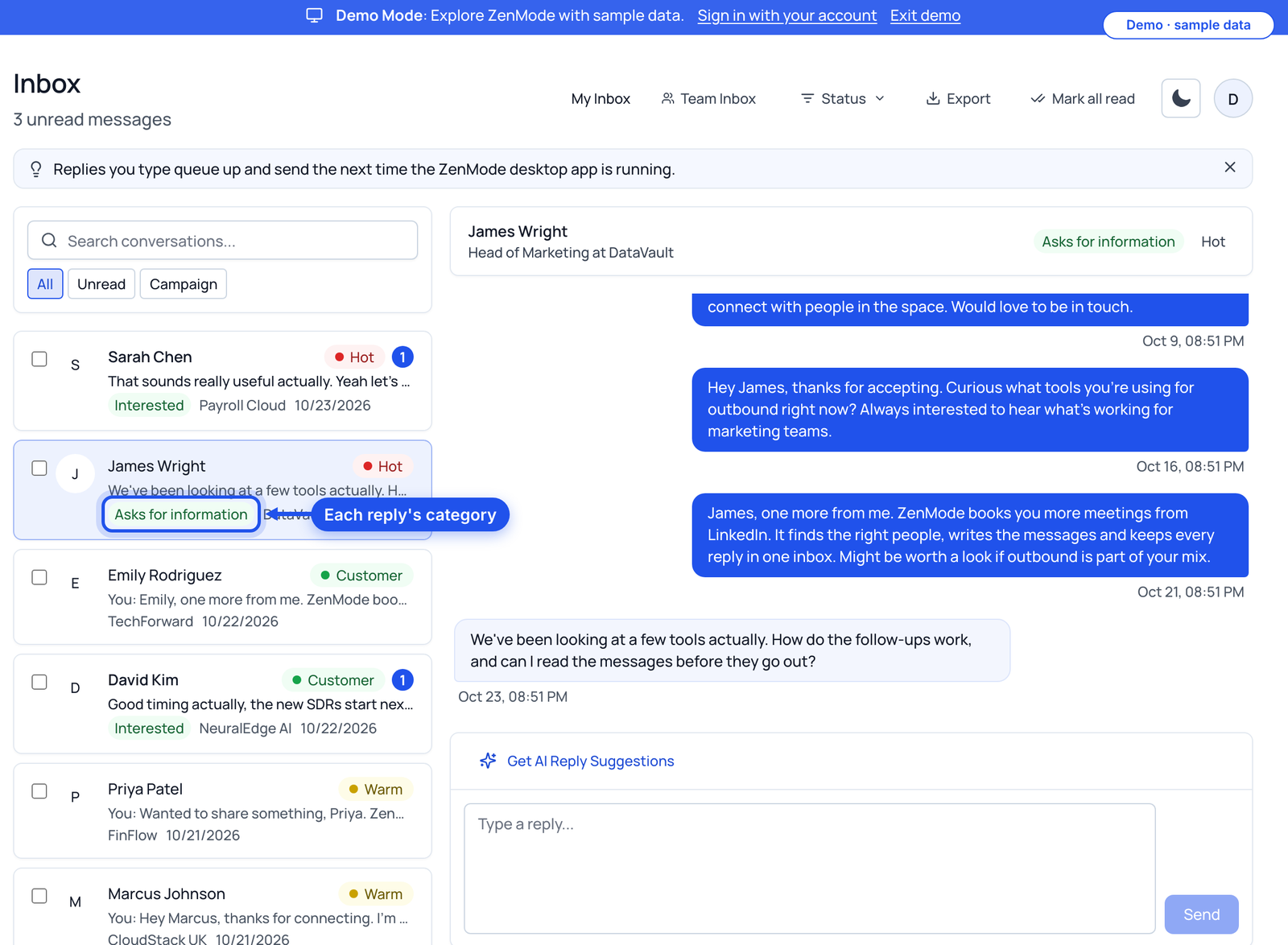
| Asks for information | Answer the question first, in two lines. Then: happy to show you in 15 minutes if easier. |
| Not now | Understood. Mind if I check back in [month]? Then put the date in your CRM. |
| Wrong person | Thanks for saying. Who looks after [problem] at [company]? I will mention you sent me. |
Now do it in ZenMode
Answer from the inbox, where replies from every campaign land. On Practitioner and above each reply carries its category, and on plans with AI you can ask for 3 reply suggestions and send the one you want yourself.
Part 7
Run the Friday review
Three numbers tell you which part of this worksheet to rewrite. Change one thing a week, so you know what moved the number.
Fill in
- Acceptance rate
- Of the people you invited, how many accepted
- Reply rate
- Of the people who accepted, how many replied
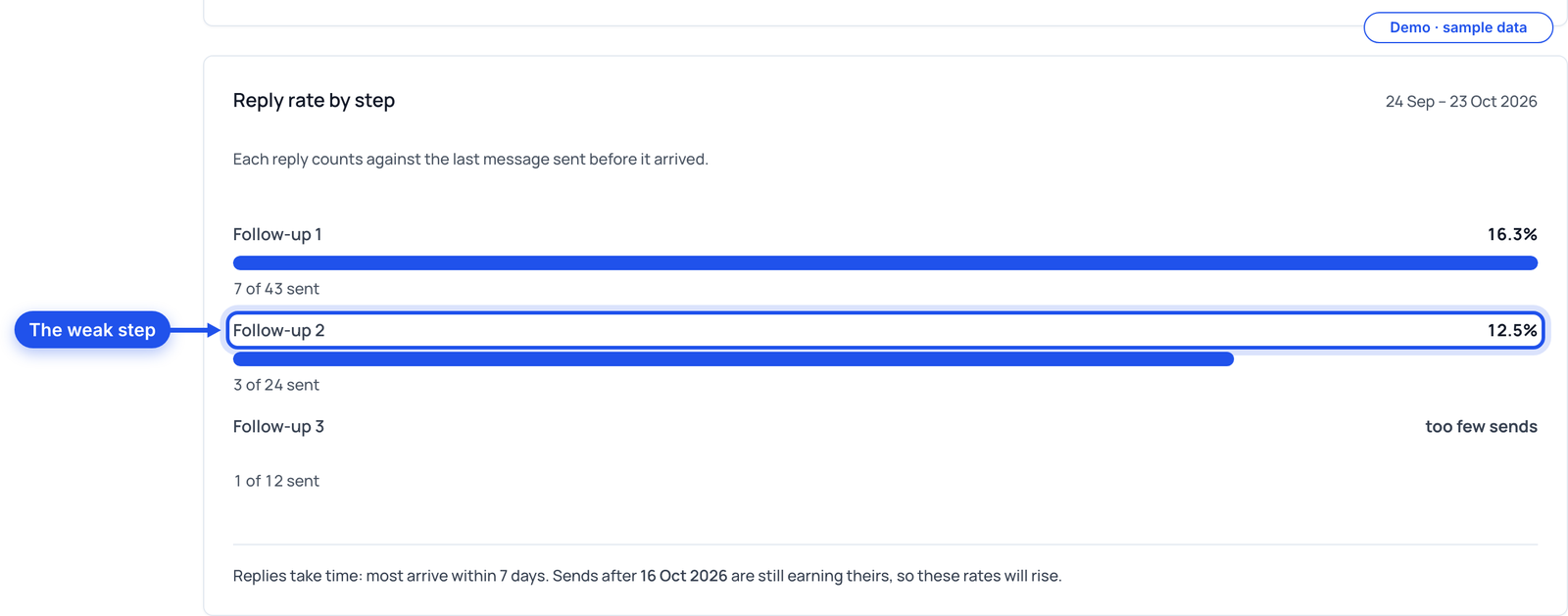
- Reply rate by step
- Which message the replies came after
| If this is low | Look at | Rewrite |
|---|---|---|
| Acceptance | Who is on the list, and your own profile | Part 2, then the note in part 3 |
| Replies after accepting | Follow-up 1 | Part 4: make the first question easier to answer |
| Replies at one step | That step's message | Part 4: give that step a new reason from the bank |
| Replies, but no meetings | How you answer | Part 6: shorter answers, one clear next step |
Now do it in ZenMode
Open Analytics, pick the last 7 days and the campaign, and read acceptance rate, reply rate and reply rate by step.
Print this
Before your first invitation goes out
- One-line problem written, from the buyer's side
- Last three customers described in LinkedIn's fields
- List sized to your daily ceiling and active days
- Note under 200 characters, about them, no ask
- Three follow-ups, each with a new reason
- Active days and business hours set
- Daily ceiling set lower than you think
- Calendar link and four reply answers ready
- Friday review in the calendar
Do this guide in ZenMode
ZenMode books you more meetings from LinkedIn: it finds the right people, writes the messages, and keeps every reply in one inbox. It is a desktop app for Mac and Windows that sends while the app is open. Practitioner, Master and Dojo include a 14-day free trial, first time only.
Start your 14-day free trial