Free guide · scorecard · 6 parts
Know exactly what to fix in your LinkedIn outreach, every Friday
A short weekly review for a campaign that is already running. Three numbers, the step where people drop off, what the replies say, and a table that tells you which one thing to change next week.
Free. The whole guide is on this page; no email needed.

I'm Jonathan. I build ZenMode: I write the code, answer the support emails, and my own outreach runs through it. Most campaigns don't need a new tool or a new strategy. They need one honest look a week and one change at a time. This is the short Friday review I'd run on any campaign. Questions: hello@zen-mode.io. I read everything.
Jonathan Lis · founder, ZenMode
Who it's for
Founders and small teams with a LinkedIn campaign running, who see the numbers but do not know which part to fix.
You leave with
A filled-in scorecard for this week, the one change you will make, and a log that shows next Friday whether it worked.
What's inside
How it was put together
The review uses only numbers your own campaign produces. The thresholds are left for you to set, because what counts as low depends on your market, list and offer: we quote no benchmark. The diagnosis table is our rule of thumb, labelled as ours. Screenshots are ZenMode's demo with sample data.
Part 1
Write down three numbers
You cannot fix what you have not written down. Take the same three numbers every Friday, for the same campaign and the same length of time, so this week can be compared with last.
Fill in
- Connection requests sent
- This week, this campaign
- Acceptance rate
- Of the people you invited, how many accepted
- Reply rate
- Of the people who accepted, how many replied
Number 1
Requests sent
This week, one campaign
Number 2
Acceptance rate
Accepted ÷ invited
Number 3
Reply rate
Replied ÷ accepted
Find
The biggest drop
Request → accepted, or accepted → replied
Change
One thing only
The list, the note, or one follow-up
Next Friday
Did it move?
Same campaign, same 7 days, compare
Now do it in ZenMode
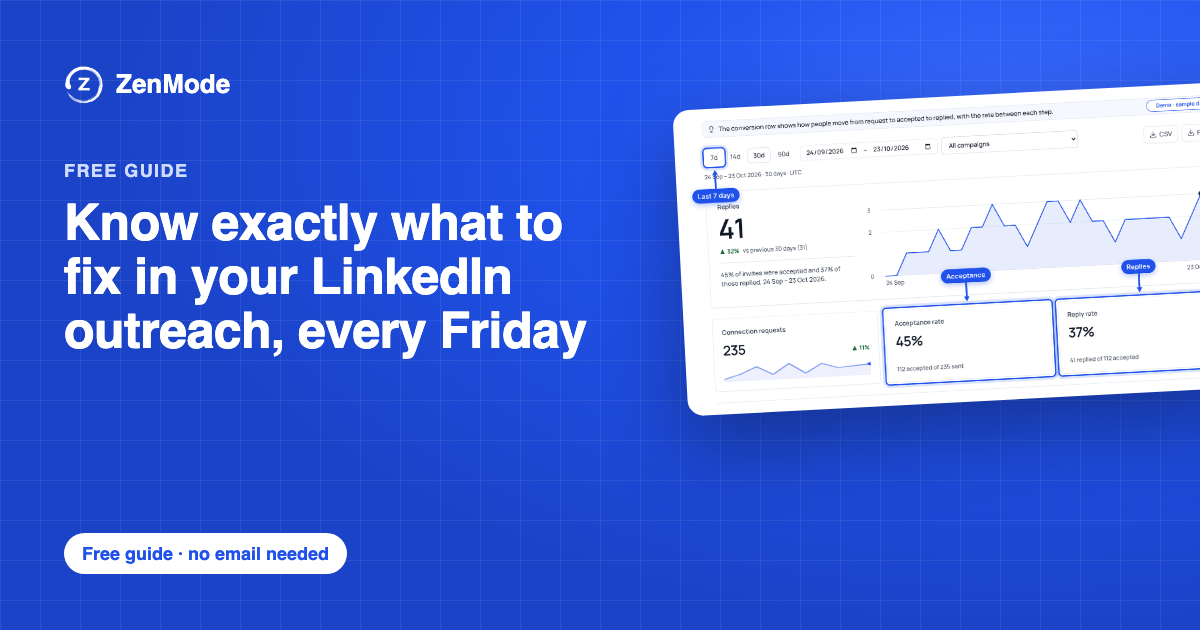
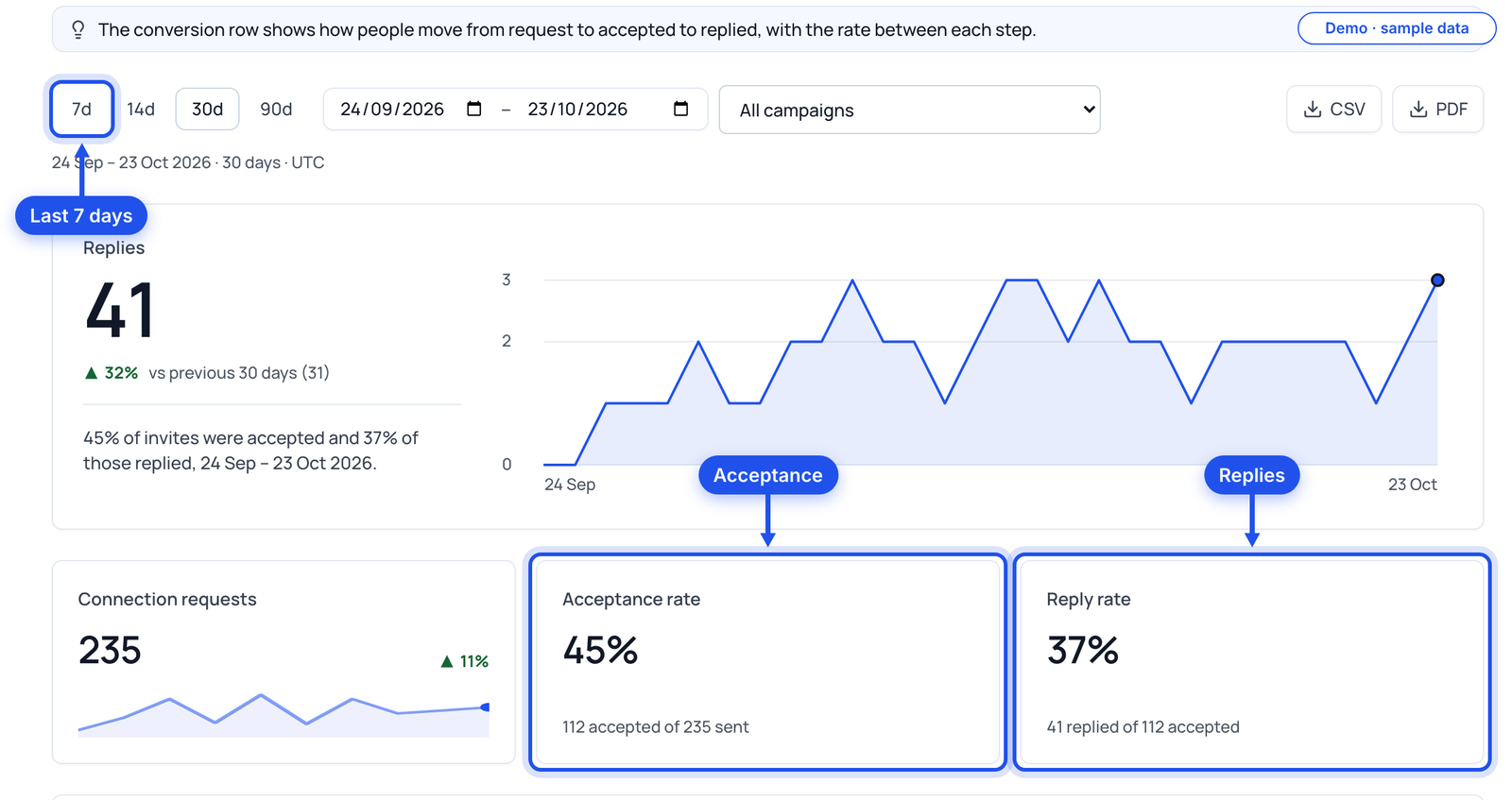
Open Analytics, pick the last 7 days and the campaign, and copy the three numbers. Export the view as CSV or PDF if you keep your log elsewhere.
Part 2
Find where people drop off
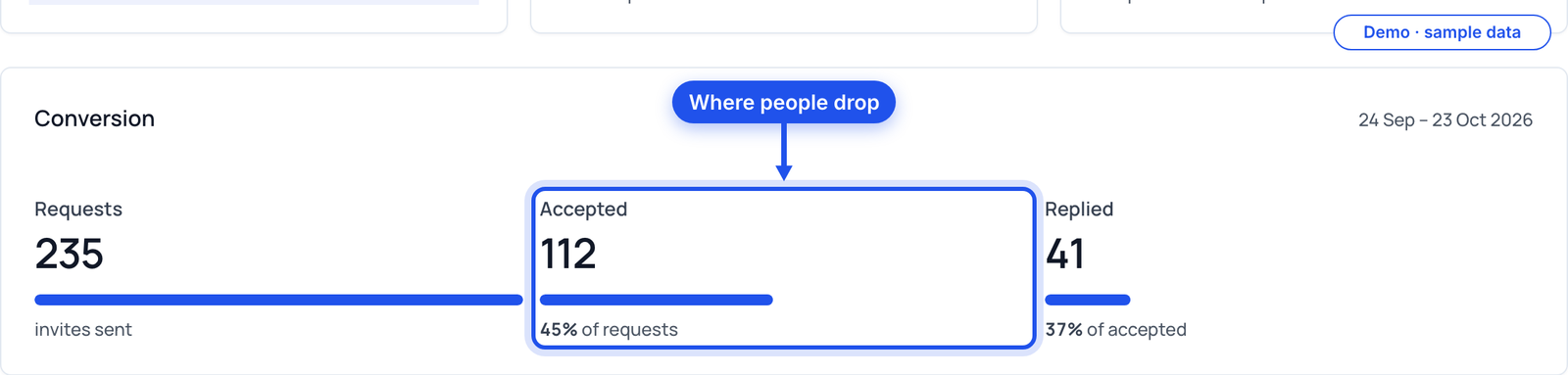
Every campaign loses people in two places: between the request and the accept, and between the accept and the reply. The bigger drop is where your fix goes.
| Biggest drop | It usually means | Look at |
|---|---|---|
| Request → accepted | They do not see a reason to connect | Who is on the list, your profile, the note |
| Accepted → replied | They connected but the messages give no reason to answer | Follow-up 1 first, then the rest |
Now do it in ZenMode
Read the conversion row on Analytics: requests, accepted and replied, side by side for the same dates.
Part 3
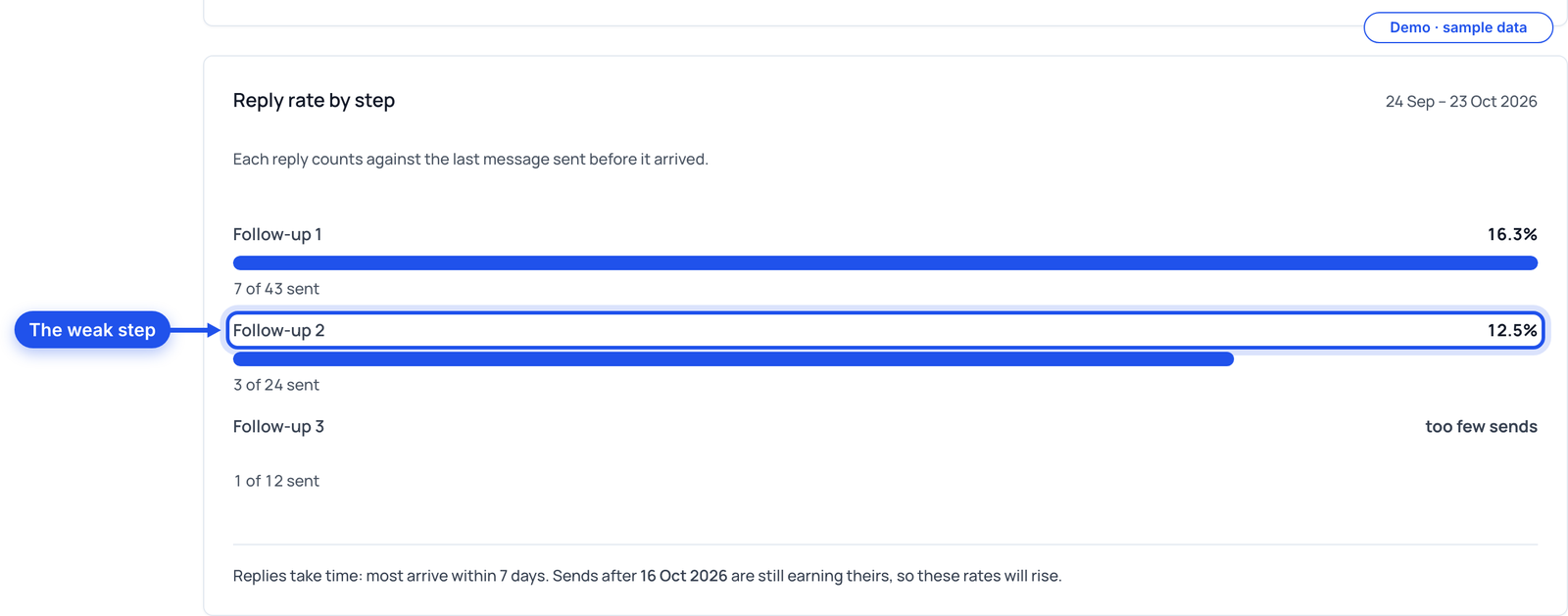
Find the weak step
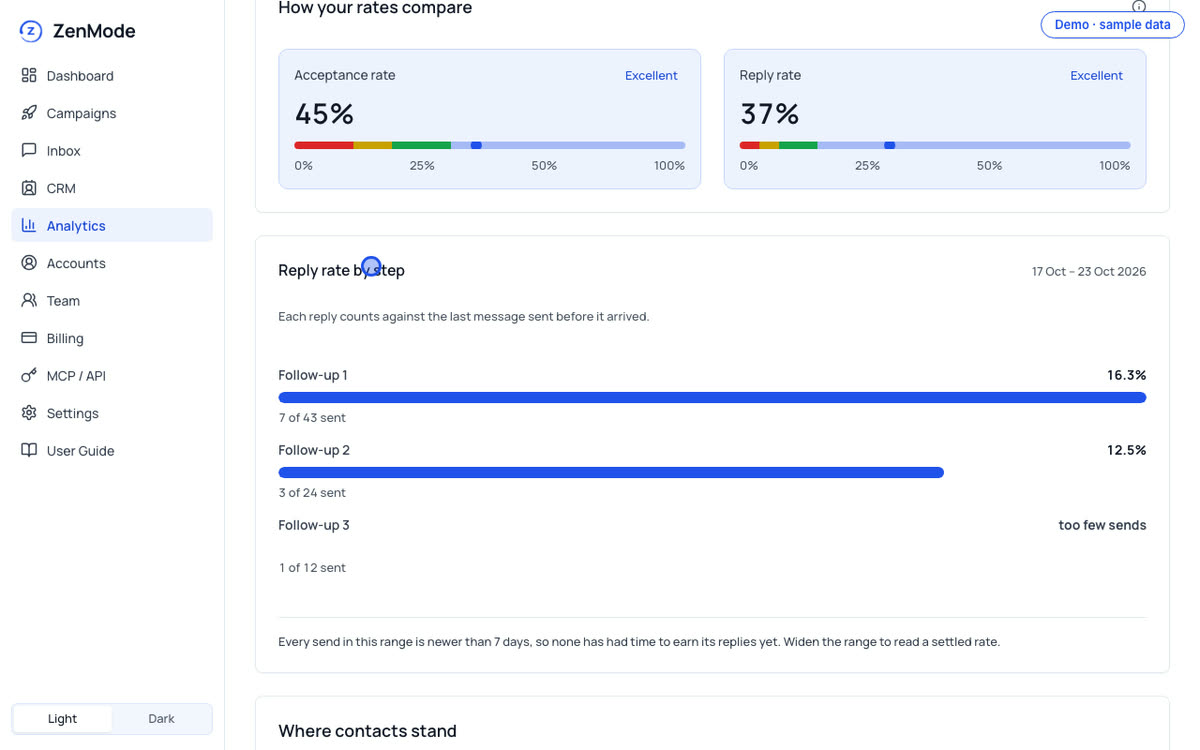
If replies come almost all after one message, the others are not doing their job. Two cautions before you act: a step with few sends tells you little, and replies keep arriving for days after a message goes out, so the most recent week always looks lower than it will.
Fill in
- Replies after follow-up 1
- And how many were sent
- Replies after follow-up 2
- And how many were sent
- Replies after follow-up 3
- And how many were sent
Now do it in ZenMode
Read Reply rate by step on Analytics, for the same campaign and dates, and write the three steps into the scorecard.
Part 4
Read what the replies say
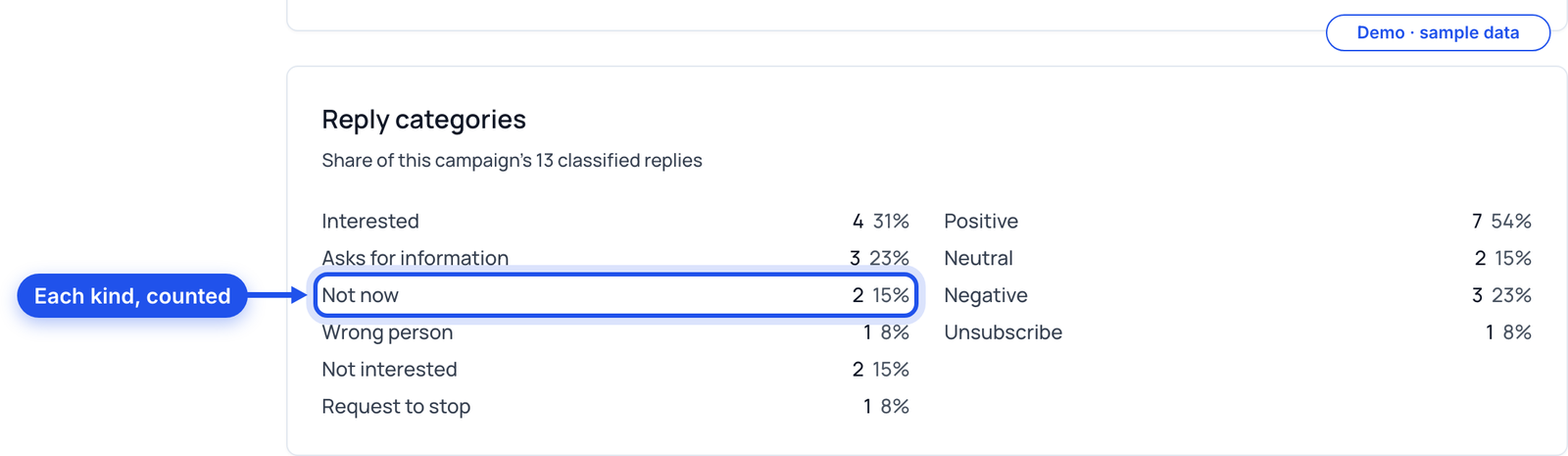
A reply rate counts answers; it does not say whether they were good ones. Lots of "wrong person" means the list is off. Lots of "not now" means the timing or the offer is. Lots of "asks for information" means your messages leave out something people need.
Fill in
- Interested and asks for information
- Your positive replies
- Not now
- Put each one's date in your CRM
- Wrong person, not interested, request to stop
- What these have in common
Now do it in ZenMode
On Practitioner and above, the campaign's Reply categories card counts its replies by category: interested, asks for information, not now, wrong person, not interested and request to stop.
Part 5
Choose one change
Change one thing a week. Change three and next Friday you will not know which one moved the number.
Fill in
- This week's one change
- What you changed, on which campaign, and the date
| If this is low | Change | Keep the same |
|---|---|---|
| Acceptance | The list first; then the note | The follow-ups |
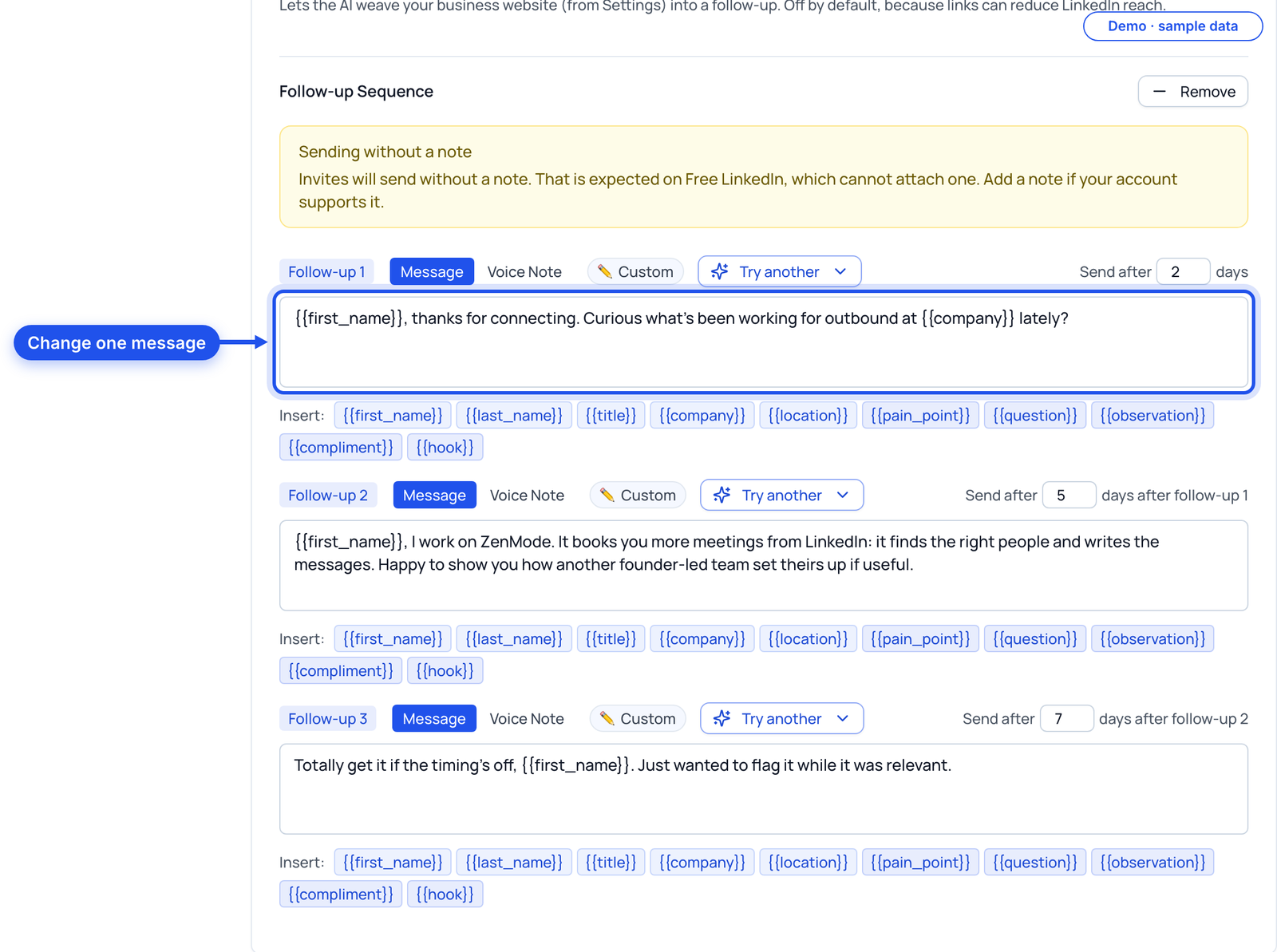
| Replies after accepting | Follow-up 1: one easier question | The list and the note |
| Replies at one step | That step's reason | Every other step |
| Lots of "wrong person" | The job titles in your targeting | The messages |
| Replies, but no meetings | How you answer: shorter, one next step | The campaign |
Now do it in ZenMode
Make the change on the campaign page: targeting, the note or one follow-up. Then read Next queued messages to see what the next people will receive.
Part 6
Know when to pause
Some weeks the right change is to stop and rebuild rather than tweak. Pausing costs you nothing; sending a sequence you no longer believe in costs you the list.
| Pause when (our rule of thumb) | Then |
|---|---|
| Replies are mostly "wrong person" or "not interested" | Rebuild the list before anything else |
| You would not send the note yourself, by hand, today | Rewrite it, then resume |
| Requests to stop show up more than once in a week | Read those threads, then rebuild the list and the note |
| You cannot answer replies this week | Pause until you can |
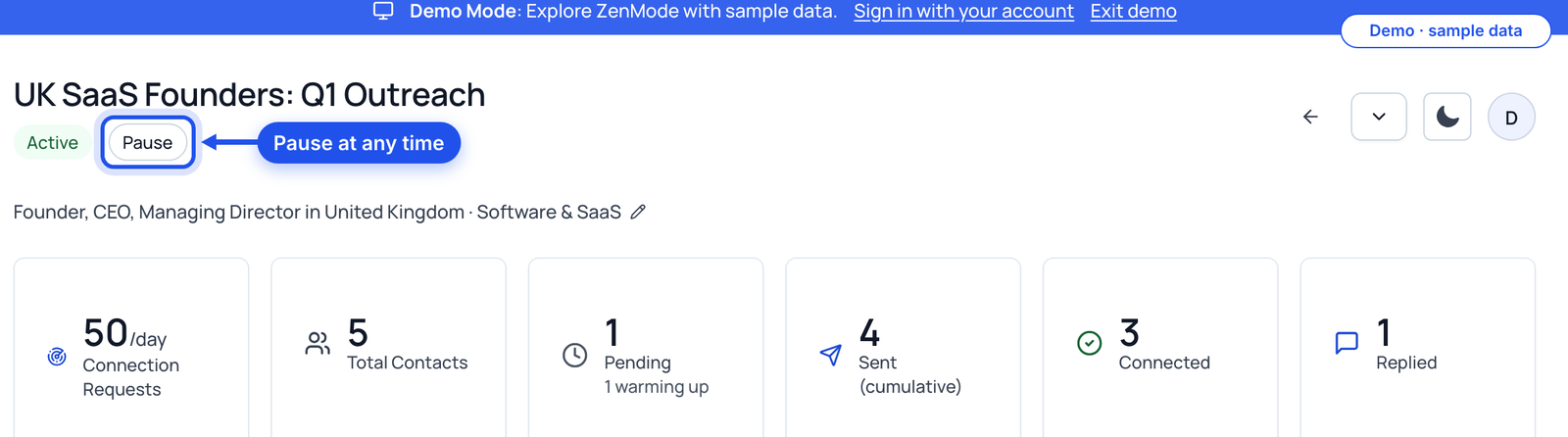
Now do it in ZenMode
Press Pause on the campaign. It stays as it is, and you resume it when the rebuild is done.
Print this
Every Friday
- Same campaign, last 7 days
- Requests sent written down
- Acceptance rate written down
- Reply rate written down
- Biggest drop found
- Weak step checked (enough sends?)
- Reply categories read
- One change chosen and logged with the date
- Pause decision made
- Last week's change checked against this week
Do this guide in ZenMode
ZenMode books you more meetings from LinkedIn: it finds the right people, writes the messages, and keeps every reply in one inbox. It is a desktop app for Mac and Windows that sends while the app is open. Practitioner, Master and Dojo include a 14-day free trial, first time only.
Start your 14-day free trial