Free guide · 50 prompts · 6 parts
Turn Claude into your LinkedIn prospect engine: 50 prompts
50 prompts to paste into Claude, in order: build the list, research each account, find who is showing buying intent right now, score everyone against your ideal customer, then write the messages and start the campaign in ZenMode on your yes.
Free. The whole guide is on this page; no email needed.

I'm Jonathan. I build ZenMode: I write the code, answer the support emails, and my own outreach runs through it. These are the prompts I'd hand someone starting from a blank sheet. Paste them in order, in one chat, and fill in the brackets. Nothing reaches anyone until you've read a summary and said yes. Questions: hello@zen-mode.io. I read everything.
Jonathan Lis · founder, ZenMode
Who it's for
Founders and small sales teams who already use Claude and want the list, the signals and the campaign built from one chat. The prompts that start "Using ZenMode" need a paid ZenMode plan except Novice.
You leave with
A scored list of the right people, a reason to write to each one this week, the messages, and a paused ZenMode campaign waiting for your yes.
What's inside
How it was put together
Every prompt that starts "Using ZenMode" asks for something ZenMode's MCP tools do. The rest run in Claude, most of them with web search on. Prompts are ours; edit them freely. Screenshots are ZenMode's demo with sample data.
Part 1
Set up Claude and connect ZenMode
Start one chat for the whole run, so Claude keeps the ideal customer from prompt 1 in mind for the 49 after it. Turn on web search: the Build and Enrich prompts, and the funding and new-role prompts, use it. Replace everything in [square brackets] with your own details before you send a prompt.
| You need | Where |
|---|---|
| Claude with web search on | Claude's settings |
| A paid ZenMode plan except Novice | For the prompts that start "Using ZenMode" |
| The ZenMode desktop app | It sends while the app is open, on Mac or Windows |
Now do it in ZenMode
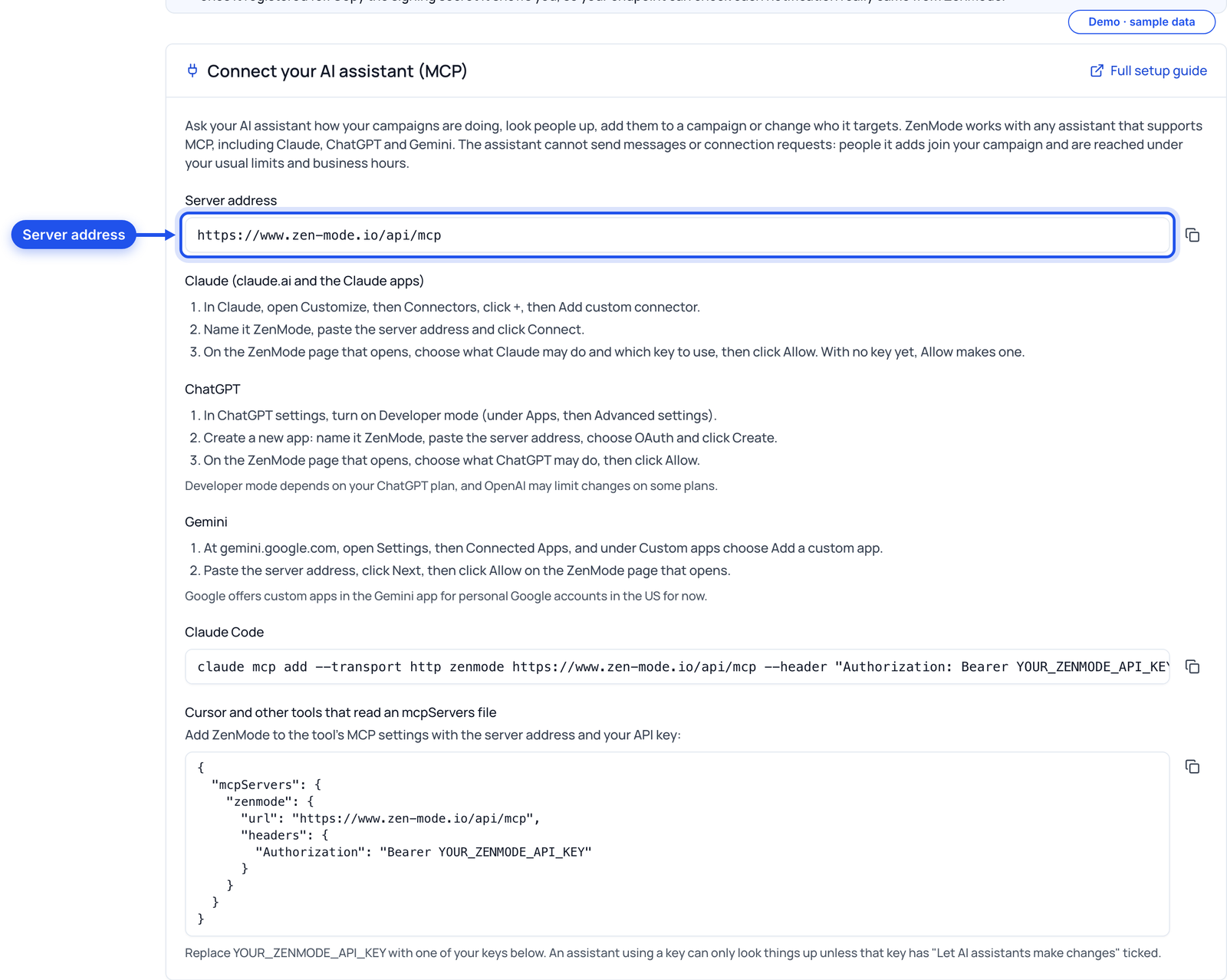
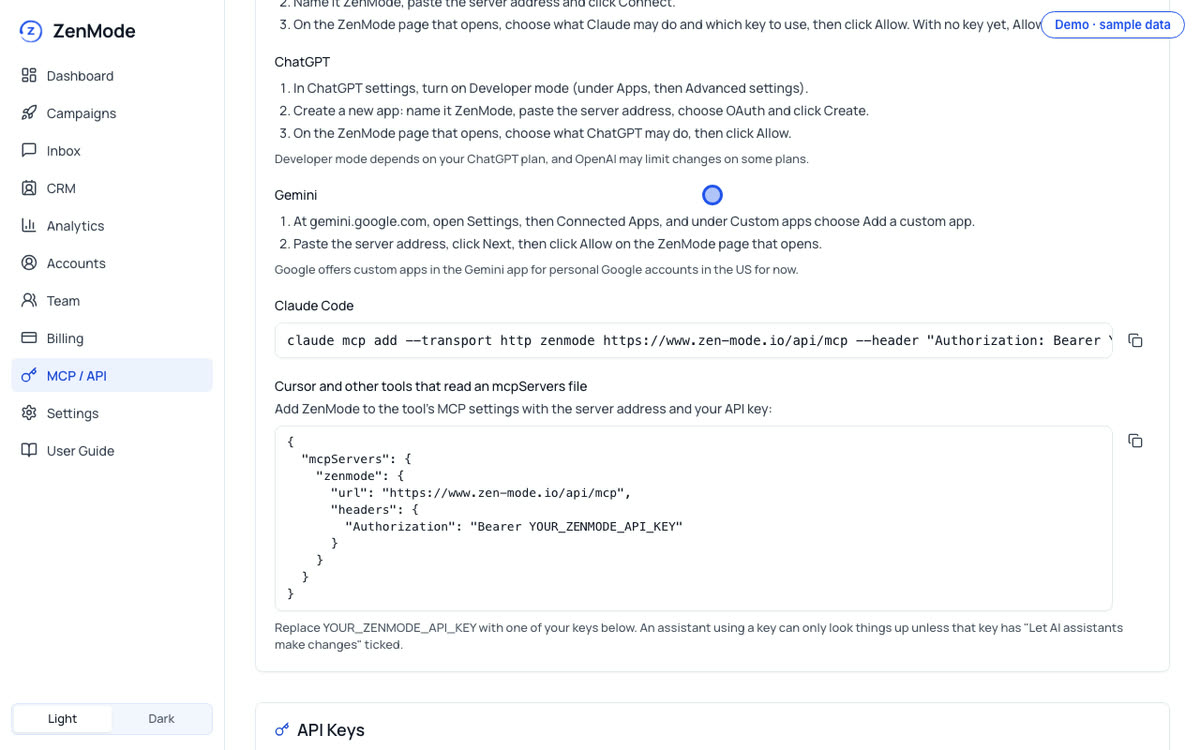
Open MCP / API in the ZenMode dashboard and create an API key. In Claude, add a custom connector with the server address https://www.zen-mode.io/api/mcp. A ZenMode page opens: sign in if asked, choose what Claude may do and the API key to use, and click Allow.
Part 2
Build the list: prompts 1 to 10
Define who you sell to, then build the list of companies and job titles to go after.
1. Turn your best customers into an ideal customer profile
Claude
Here are my 5 best customers: [company, the buyer's job title, what they bought, why they bought]. Find what they have in common: industry, company size, location, the buyer's job title and the problem they had. Write it up as a one-paragraph ideal customer profile, then a table of hard filters I can search on.
2. Decide who to leave out
Claude
Using that profile, list who looks like a fit but isn't: industries, company sizes and job titles I should exclude, with one line on why for each. Put it in a table I can use as exclusion filters.
3. Map the buying group
Claude
At a [company size] [industry] company, who signs off on buying [your product], who uses it day to day, and who could block it? Give me the exact LinkedIn job titles for each, including the common variations.
4. Build the account list
Claude + web search
Find B2B [industry] companies with [11-50] employees and their HQ in [location] that [sell to other businesses / another qualifier]. Put 25 of them in a table: company, website, industry, size, HQ, and one line on what they do. Only include companies you found a source for, and link it.
5. Find lookalikes of your best customer
Claude + web search
My best customer is [company, website]. Find 15 more companies like it: same business model, same size, same market. Add one line on why each one is a lookalike.
6. Find your competitor's customers
Claude + web search
Find companies publicly named as customers of [competitor]: case studies, logo pages, review sites and press releases. Table: company, where you found it, link.
7. Write the LinkedIn search
Claude
Write me a LinkedIn people search for [job titles] at [industry] companies in [location]. Give me the boolean string for the job title field and the exact filters to tick.
8. Turn it into Sales Navigator filters
Claude
Turn my ideal customer profile into Sales Navigator filters. Give me the Lead filters and the Account filters separately, with the exact values to pick in each.
9. Get the targeting ready for ZenMode
Claude
Give me the final targeting for my ideal customer: job titles as a comma-separated list, LinkedIn industry names exactly as LinkedIn spells them, and locations written as "City, Country".
10. Clean the list
Claude
Here is my list: [paste it]. Remove duplicates, companies outside [size] or [location], and anyone whose title isn't a buyer. Show me the cleaned list, then a short list of what you removed and why.
Now do it in ZenMode
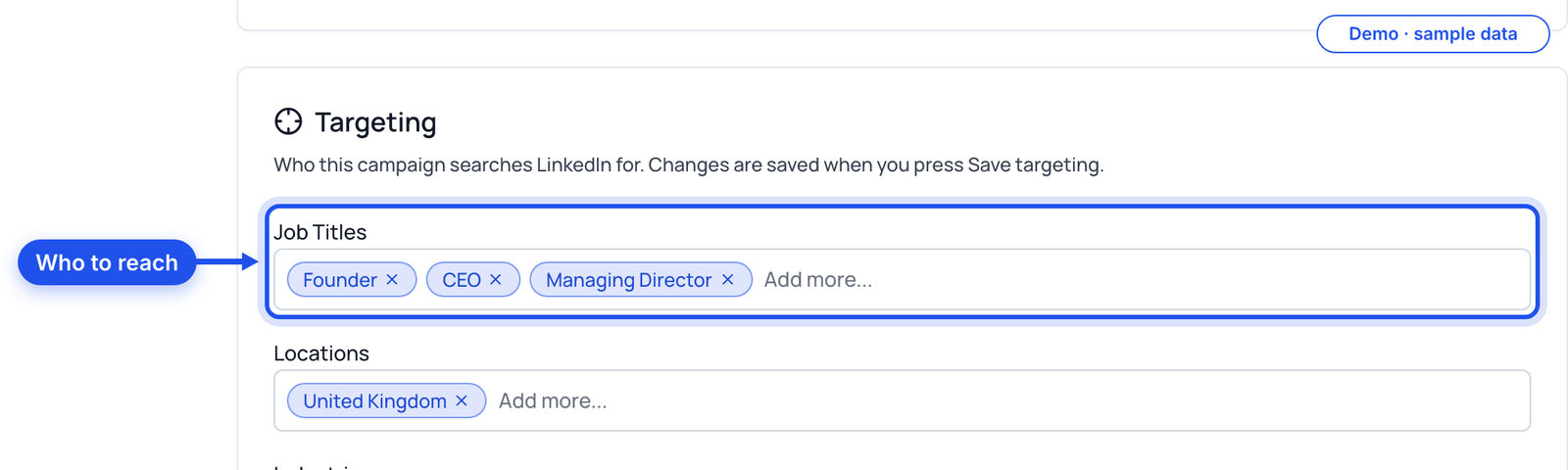
Open a campaign's Targeting section and add the job titles and locations prompt 9 gave you. ZenMode searches LinkedIn for them and works through the people it finds inside your limits.
Part 3
Enrich it: prompts 11 to 20
Find the right person at each company, and enough about them to write something worth reading.
11. Pull the decision-maker at each account
Claude + web search
For each company in my table, find the person most likely to buy [your product], usually the [job title]. Add their name, title and LinkedIn URL. If you can't find someone with a source, leave the row blank rather than guessing.
12. Add a company snapshot
Claude + web search
For each company, add: what they sell, who they sell to, rough headcount, and their newest announcement from the last 90 days with a link.
13. Write a pain hypothesis
Claude
For each account, write one line on the problem they most likely have that [your product] solves, based only on what you found. Mark how sure you are: high, medium or low.
14. Research one person properly
Claude + web search
Research [name, title, company, LinkedIn URL]. What do they post about, what have they said publicly, and what has changed in their role recently? Give me 3 facts I could mention in a first message, each with its source.
15. Find their current tools
Claude + web search
For each company, check their website and job ads for the tools they use for [category, e.g. CRM or outbound]. Add a "Current tool" column with the link where you saw it.
16. Read their careers page
Claude + web search
Read [company]'s careers page. Which roles are open, which team is growing fastest, and what does that say about their priorities this quarter?
17. Pull recent news
Claude + web search
Find news from the last 60 days for each company: funding, launches, senior hires, new offices. One line each with a link. Write "nothing found" rather than filling a gap.
18. Read their positioning
Claude + web search
Read [company website]. Sum up their positioning in one line, who they target, and one claim or gap I could ask them about in a message.
19. Find common ground
Claude + web search
Here is my background: [past employers, school, city, topics I post about]. For each decision-maker, find anything we share: an employer, a school, a city, a group or a topic we both post about.
20. Fill the gaps
Claude + web search
Go through the table and list every empty cell. Try one more search for each. If there is still nothing, write "not found". Then show me the finished table.
Now do it in ZenMode
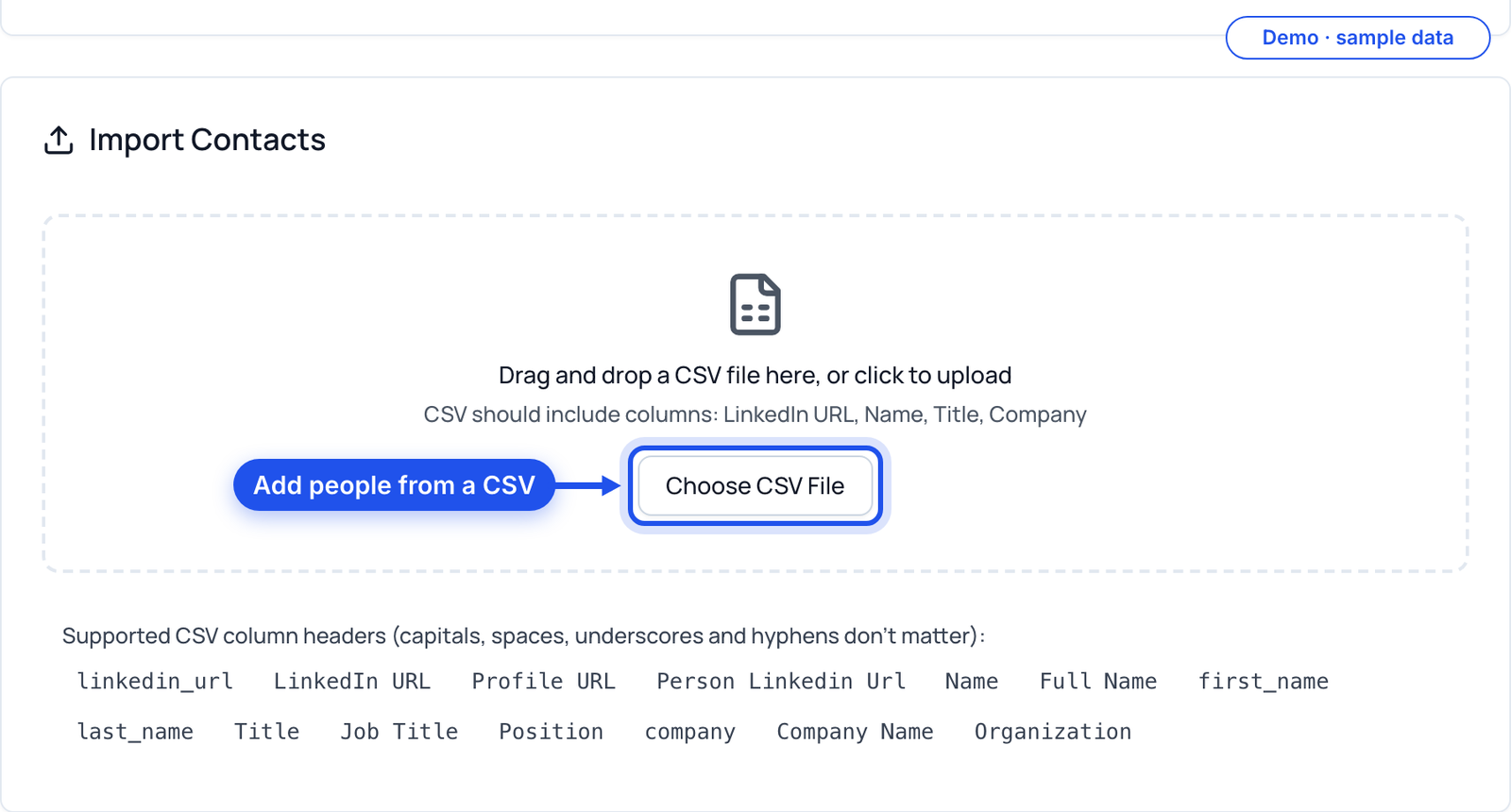
Save the finished table as a CSV with a LinkedIn URL, name, title and company for each person, and import it into a campaign.
Part 4
Find live signals: prompts 21 to 30
Find the people showing buying intent right now: engaging with competitors, posting on your topics, hiring, raising money or starting a new role. Prompts 21 to 27 use ZenMode Signals. Signals is included on every plan except Novice, and is rolling out to selected customers first. Prompts 28 and 29 use web search and work for everyone.
21. Check what you're watching
Claude + ZenMode Signals
Using ZenMode, show me what Signals is watching for my account: competitors, topics, industry experts and hiring searches. Compare it with my ideal customer profile and tell me what to add.
22. People engaging with a competitor
Claude + ZenMode Signals
Using ZenMode, show me people who engaged with [competitor]'s posts in the last 14 days, strongest buying intent first. Only people who aren't in a campaign yet.
23. People posting on your topic
Claude + ZenMode Signals
Using ZenMode, find signal leads from the topic [topic] since [date] with a score of 3 bars.
24. The audience of the experts you watch
Claude + ZenMode Signals
Using ZenMode, show me leads who engaged with posts by the industry experts I watch. Group them by company.
25. People engaging with your own posts
Claude + ZenMode Signals
Using ZenMode, who engaged with my own posts this month? Which of them match my ideal customer and aren't in a campaign yet?
26. Companies that are hiring
Claude + ZenMode Signals
Using ZenMode, show me the hiring signals: companies hiring for [role, e.g. SDRs]. Who is the likely buyer at each one?
27. Find new leads
Claude + ZenMode Signals
Using ZenMode, find new signal leads. Before you spend anything, tell me the most it could cost and how many credits I have left, and wait for my yes.
28. Companies that just raised money
Claude + web search
Search the web for [industry] companies in [location] that announced a funding round in the last 30 days. Table: company, round, amount, date, link. Then tell me which of them are already on my list.
29. People who just started a new role
Claude + web search
Search the web for announcements of new [job titles] at [industry] companies in the last 60 days. Table: name, new title, company, start date, link.
30. Flag every signal in one column
Claude
Flag engagers, topic posters, hiring and funding: combine every signal we found into one column per person, with the type (competitor, topic, expert, own post, hiring, funding, new role), what happened and when. People with no signal get "none".
Now do it in ZenMode
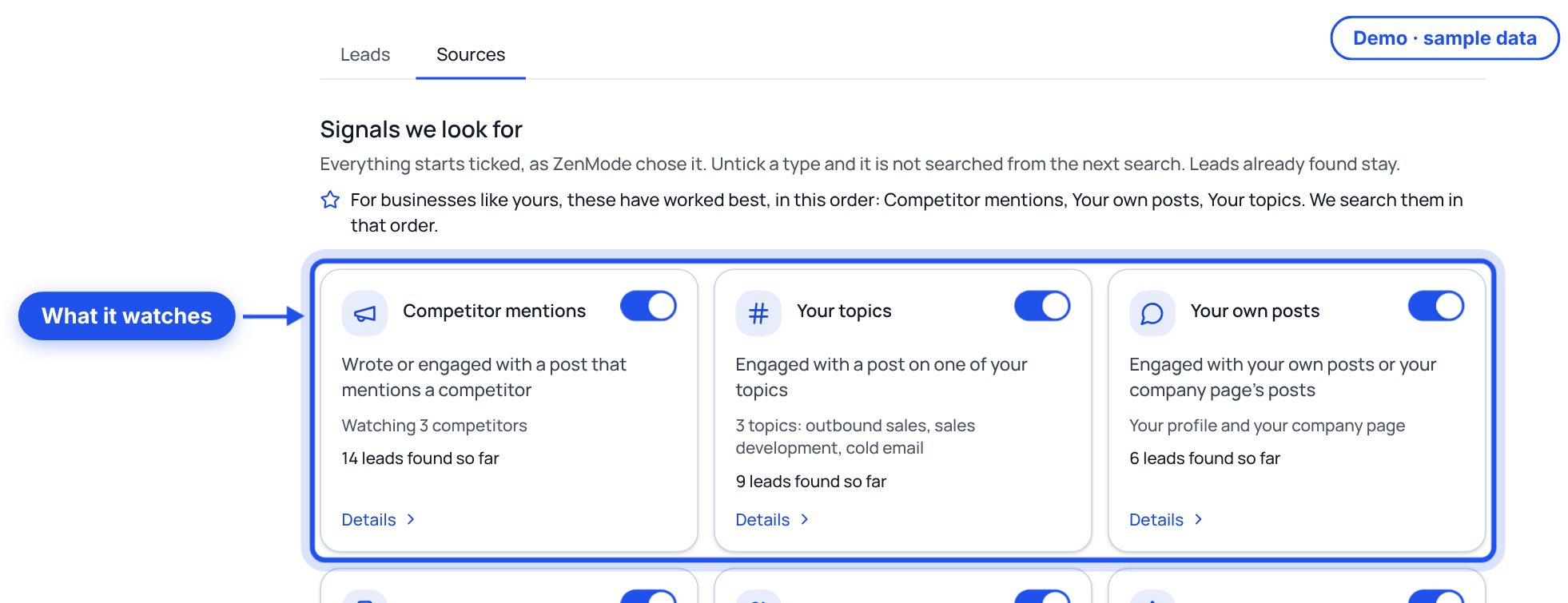
Open Signals and check the Sources tab: each kind of signal ZenMode watches for you, what is behind it, and how many leads it has found. Untick a type and it is not searched from the next search.
Part 5
Score everyone: prompts 31 to 40
Rank everyone against your ideal customer and decide who hears from you first.
31. Build the scoring rubric
Claude
Build me a 100-point score: fit out of 60 (industry, size, location, job title) and intent out of 40 (signal type and how recent it is). Show me the rubric as a table before you score anyone.
32. Score every row
Claude
Score every row against my ideal customer using that rubric. Add an ICP score column and a one-line reason for each. Sort highest first.
33. Split into tiers
Claude
Split the list into tiers: A (80 and over), B (60 to 79) and C (under 60). How many are in each, and what should I do with each tier?
34. Let old signals fade
Claude
Lower the intent score for any signal older than 14 days, and set it to zero after 45 days. Re-score and re-sort.
35. Take out who you shouldn't contact
Claude
Flag anyone I shouldn't contact: competitors, my existing customers [paste the list], recruiters, students, and companies under [size]. Remove them and list who you removed.
36. Check who's already in a campaign
Claude + ZenMode
Using ZenMode, check whether any of my top 30 are already in one of my campaigns, and what state they're in. Take anyone already contacted off this list.
37. One person per company
Claude
Where I have several people at the same company, pick the single best one to contact first and tell me why. Move the others to a "later" list.
38. Write the "why now"
Claude
For each A-tier lead, write one sentence on why they should hear from me this week, based on their signal.
39. Challenge the scores
Claude
Pick 5 A-tier leads at random and argue against their score. What would make them a worse fit than they look? Change any score that doesn't hold up.
40. Mark the best fits ready to send
Claude
Mark the best fits "Ready" and the rest "Hold". Give me the count of each, then the Ready list as a table: name, title, company, LinkedIn URL, signal, score, why now.
Now do it in ZenMode
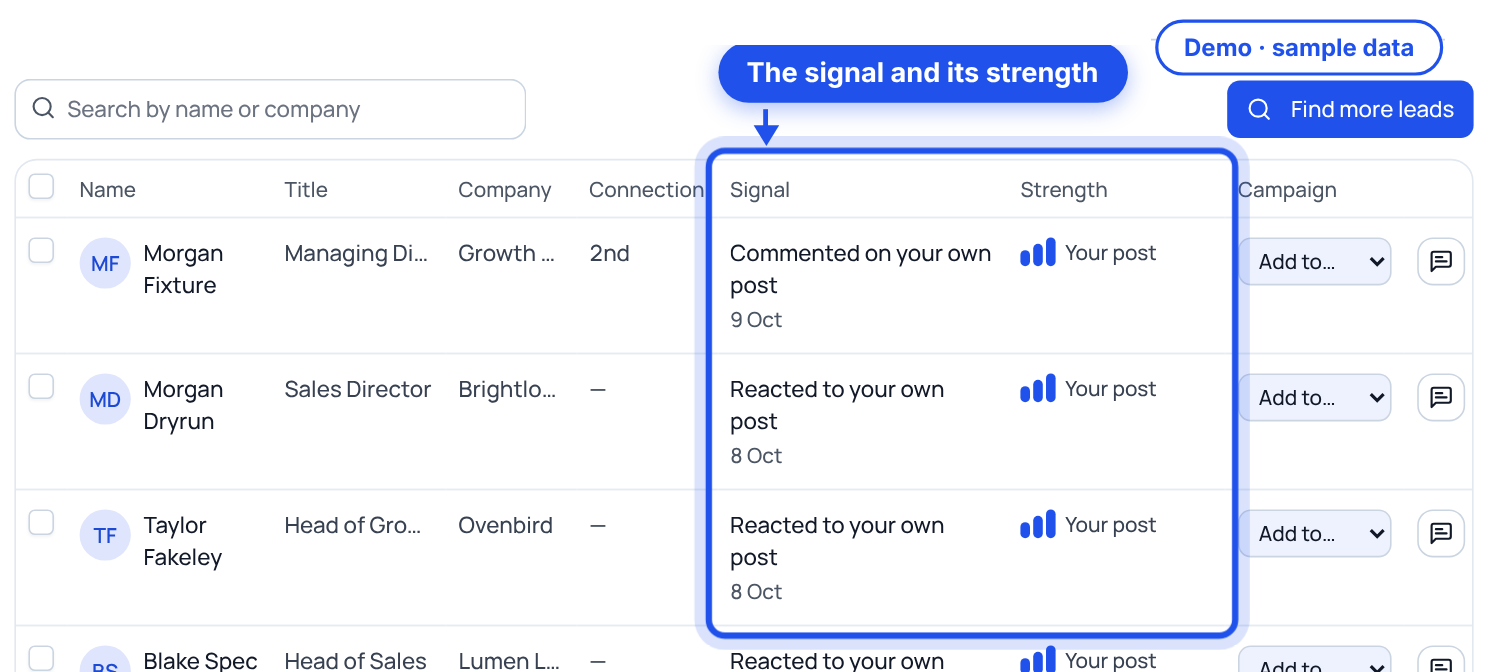
In Signals, the Leads tab shows each lead's signal and its strength, from one to three bars. Start with the strongest, and add the people you marked Ready to a campaign from the Campaign column.
Part 6
Write and ship: prompts 41 to 50
Write the messages, put the campaign together in ZenMode, start it on your yes, and handle the replies.
41. Write the connection note
Claude
Write a LinkedIn connection note under 200 characters for [name, title, company]. Mention their signal: [signal]. No pitch, no links, and end with an easy question.
42. Let ZenMode research and draft for your top leads
Claude + ZenMode Signals
Using ZenMode, research my top 10 signal leads and draft each one's connection note and follow-ups. Show me every draft.
43. Write the follow-ups
Claude
Write 3 follow-ups for people who accept: day 2, a thank-you with one useful idea; day 6, a short customer story; day 12, a soft close. Each under 500 characters, using their first name and company.
44. Check the messages
Claude + ZenMode
Using ZenMode, check each of these messages before I use them and fix anything it flags: [paste messages].
45. Write a second version to test
Claude
Write a second version of the connection note that takes a different angle (a question about their signal instead of a compliment), so I can test the two against each other.
46. Create the campaign
Claude + ZenMode
Using ZenMode, create a campaign called [name] with this connection note and these follow-ups. Keep it paused.
47. Add the leads
Claude + ZenMode Signals
Using ZenMode, add my Ready signal leads to the [name] campaign. Show me who you added.
48. Launch it on your yes
Claude + ZenMode
Using ZenMode, show me the launch summary for [name]: who it will contact, the messages and the daily limits. Wait for my yes before you start it.
49. Draft replies to people who answered
Claude + ZenMode
Using ZenMode, show me everyone in the [name] campaign who has replied. Read each conversation and draft a reply that moves toward a call. Don't send anything.
50. Review the month
Claude + ZenMode
Using ZenMode, give me my last 30 days: requests sent, accepted, replies and meetings booked. Which campaign did best, and what is the one change I should make next week?
Now do it in ZenMode
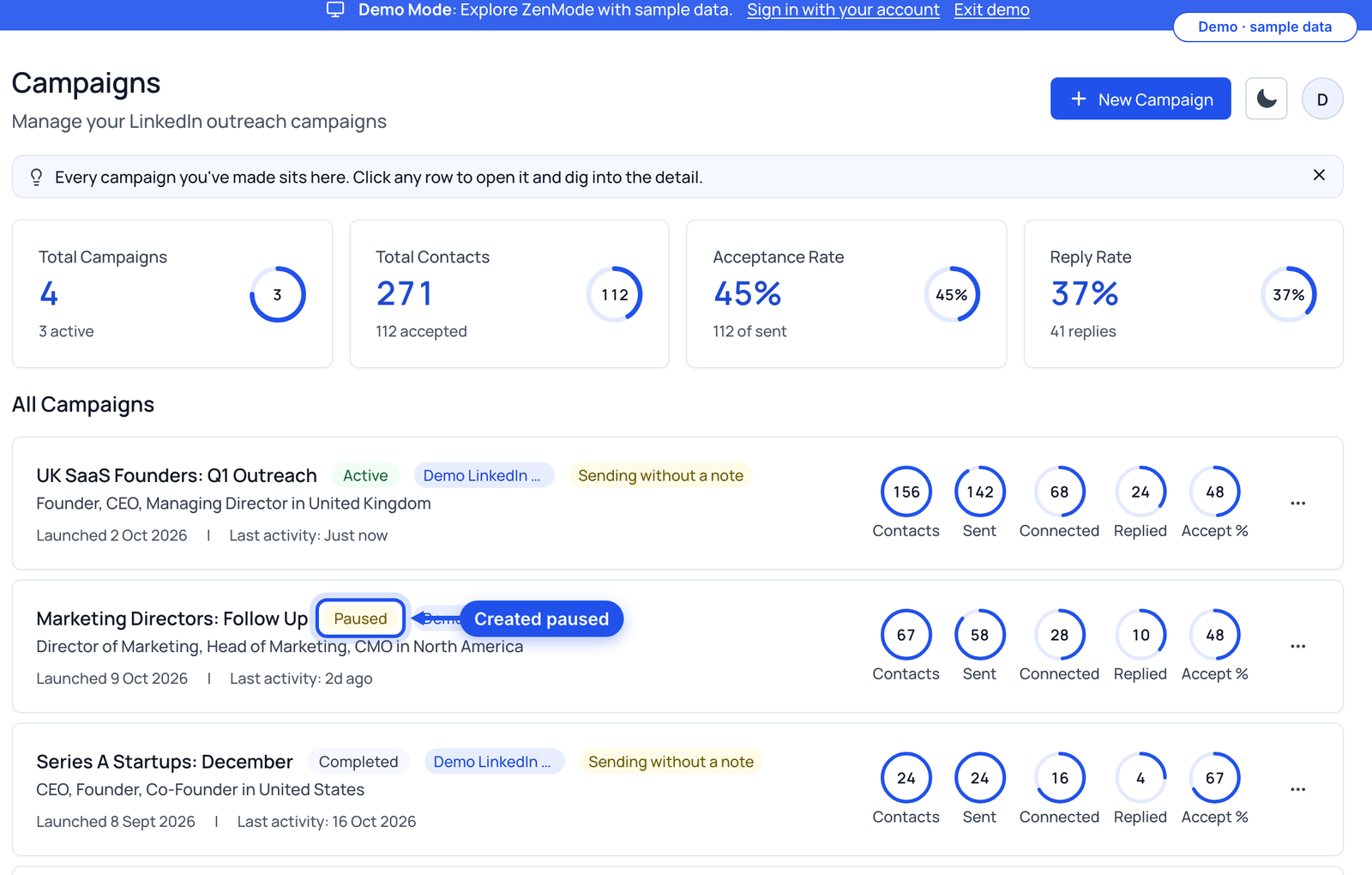
A campaign Claude creates arrives paused in Campaigns. Read the launch summary in the chat and say yes: ZenMode then works through it inside your daily limits and business hours while the desktop app is open.
Print this
All 50 prompts, in order
- 1. Turn your best customers into an ideal customer profile: Here are my 5 best customers: [company, the buyer's job title, what they bought, why they bought]. Find what they have in common: industry, company size, location, the buyer's job title and the problem they had. Write it up as a one-paragraph ideal customer profile, then a table of hard filters I can search on.
- 2. Decide who to leave out: Using that profile, list who looks like a fit but isn't: industries, company sizes and job titles I should exclude, with one line on why for each. Put it in a table I can use as exclusion filters.
- 3. Map the buying group: At a [company size] [industry] company, who signs off on buying [your product], who uses it day to day, and who could block it? Give me the exact LinkedIn job titles for each, including the common variations.
- 4. Build the account list: Find B2B [industry] companies with [11-50] employees and their HQ in [location] that [sell to other businesses / another qualifier]. Put 25 of them in a table: company, website, industry, size, HQ, and one line on what they do. Only include companies you found a source for, and link it.
- 5. Find lookalikes of your best customer: My best customer is [company, website]. Find 15 more companies like it: same business model, same size, same market. Add one line on why each one is a lookalike.
- 6. Find your competitor's customers: Find companies publicly named as customers of [competitor]: case studies, logo pages, review sites and press releases. Table: company, where you found it, link.
- 7. Write the LinkedIn search: Write me a LinkedIn people search for [job titles] at [industry] companies in [location]. Give me the boolean string for the job title field and the exact filters to tick.
- 8. Turn it into Sales Navigator filters: Turn my ideal customer profile into Sales Navigator filters. Give me the Lead filters and the Account filters separately, with the exact values to pick in each.
- 9. Get the targeting ready for ZenMode: Give me the final targeting for my ideal customer: job titles as a comma-separated list, LinkedIn industry names exactly as LinkedIn spells them, and locations written as "City, Country".
- 10. Clean the list: Here is my list: [paste it]. Remove duplicates, companies outside [size] or [location], and anyone whose title isn't a buyer. Show me the cleaned list, then a short list of what you removed and why.
- 11. Pull the decision-maker at each account: For each company in my table, find the person most likely to buy [your product], usually the [job title]. Add their name, title and LinkedIn URL. If you can't find someone with a source, leave the row blank rather than guessing.
- 12. Add a company snapshot: For each company, add: what they sell, who they sell to, rough headcount, and their newest announcement from the last 90 days with a link.
- 13. Write a pain hypothesis: For each account, write one line on the problem they most likely have that [your product] solves, based only on what you found. Mark how sure you are: high, medium or low.
- 14. Research one person properly: Research [name, title, company, LinkedIn URL]. What do they post about, what have they said publicly, and what has changed in their role recently? Give me 3 facts I could mention in a first message, each with its source.
- 15. Find their current tools: For each company, check their website and job ads for the tools they use for [category, e.g. CRM or outbound]. Add a "Current tool" column with the link where you saw it.
- 16. Read their careers page: Read [company]'s careers page. Which roles are open, which team is growing fastest, and what does that say about their priorities this quarter?
- 17. Pull recent news: Find news from the last 60 days for each company: funding, launches, senior hires, new offices. One line each with a link. Write "nothing found" rather than filling a gap.
- 18. Read their positioning: Read [company website]. Sum up their positioning in one line, who they target, and one claim or gap I could ask them about in a message.
- 19. Find common ground: Here is my background: [past employers, school, city, topics I post about]. For each decision-maker, find anything we share: an employer, a school, a city, a group or a topic we both post about.
- 20. Fill the gaps: Go through the table and list every empty cell. Try one more search for each. If there is still nothing, write "not found". Then show me the finished table.
- 21. Check what you're watching: Using ZenMode, show me what Signals is watching for my account: competitors, topics, industry experts and hiring searches. Compare it with my ideal customer profile and tell me what to add.
- 22. People engaging with a competitor: Using ZenMode, show me people who engaged with [competitor]'s posts in the last 14 days, strongest buying intent first. Only people who aren't in a campaign yet.
- 23. People posting on your topic: Using ZenMode, find signal leads from the topic [topic] since [date] with a score of 3 bars.
- 24. The audience of the experts you watch: Using ZenMode, show me leads who engaged with posts by the industry experts I watch. Group them by company.
- 25. People engaging with your own posts: Using ZenMode, who engaged with my own posts this month? Which of them match my ideal customer and aren't in a campaign yet?
- 26. Companies that are hiring: Using ZenMode, show me the hiring signals: companies hiring for [role, e.g. SDRs]. Who is the likely buyer at each one?
- 27. Find new leads: Using ZenMode, find new signal leads. Before you spend anything, tell me the most it could cost and how many credits I have left, and wait for my yes.
- 28. Companies that just raised money: Search the web for [industry] companies in [location] that announced a funding round in the last 30 days. Table: company, round, amount, date, link. Then tell me which of them are already on my list.
- 29. People who just started a new role: Search the web for announcements of new [job titles] at [industry] companies in the last 60 days. Table: name, new title, company, start date, link.
- 30. Flag every signal in one column: Flag engagers, topic posters, hiring and funding: combine every signal we found into one column per person, with the type (competitor, topic, expert, own post, hiring, funding, new role), what happened and when. People with no signal get "none".
- 31. Build the scoring rubric: Build me a 100-point score: fit out of 60 (industry, size, location, job title) and intent out of 40 (signal type and how recent it is). Show me the rubric as a table before you score anyone.
- 32. Score every row: Score every row against my ideal customer using that rubric. Add an ICP score column and a one-line reason for each. Sort highest first.
- 33. Split into tiers: Split the list into tiers: A (80 and over), B (60 to 79) and C (under 60). How many are in each, and what should I do with each tier?
- 34. Let old signals fade: Lower the intent score for any signal older than 14 days, and set it to zero after 45 days. Re-score and re-sort.
- 35. Take out who you shouldn't contact: Flag anyone I shouldn't contact: competitors, my existing customers [paste the list], recruiters, students, and companies under [size]. Remove them and list who you removed.
- 36. Check who's already in a campaign: Using ZenMode, check whether any of my top 30 are already in one of my campaigns, and what state they're in. Take anyone already contacted off this list.
- 37. One person per company: Where I have several people at the same company, pick the single best one to contact first and tell me why. Move the others to a "later" list.
- 38. Write the "why now": For each A-tier lead, write one sentence on why they should hear from me this week, based on their signal.
- 39. Challenge the scores: Pick 5 A-tier leads at random and argue against their score. What would make them a worse fit than they look? Change any score that doesn't hold up.
- 40. Mark the best fits ready to send: Mark the best fits "Ready" and the rest "Hold". Give me the count of each, then the Ready list as a table: name, title, company, LinkedIn URL, signal, score, why now.
- 41. Write the connection note: Write a LinkedIn connection note under 200 characters for [name, title, company]. Mention their signal: [signal]. No pitch, no links, and end with an easy question.
- 42. Let ZenMode research and draft for your top leads: Using ZenMode, research my top 10 signal leads and draft each one's connection note and follow-ups. Show me every draft.
- 43. Write the follow-ups: Write 3 follow-ups for people who accept: day 2, a thank-you with one useful idea; day 6, a short customer story; day 12, a soft close. Each under 500 characters, using their first name and company.
- 44. Check the messages: Using ZenMode, check each of these messages before I use them and fix anything it flags: [paste messages].
- 45. Write a second version to test: Write a second version of the connection note that takes a different angle (a question about their signal instead of a compliment), so I can test the two against each other.
- 46. Create the campaign: Using ZenMode, create a campaign called [name] with this connection note and these follow-ups. Keep it paused.
- 47. Add the leads: Using ZenMode, add my Ready signal leads to the [name] campaign. Show me who you added.
- 48. Launch it on your yes: Using ZenMode, show me the launch summary for [name]: who it will contact, the messages and the daily limits. Wait for my yes before you start it.
- 49. Draft replies to people who answered: Using ZenMode, show me everyone in the [name] campaign who has replied. Read each conversation and draft a reply that moves toward a call. Don't send anything.
- 50. Review the month: Using ZenMode, give me my last 30 days: requests sent, accepted, replies and meetings booked. Which campaign did best, and what is the one change I should make next week?
Do this guide in ZenMode
ZenMode books you more meetings from LinkedIn: it finds the right people, writes the messages, and keeps every reply in one inbox. It is a desktop app for Mac and Windows that sends while the app is open. Every plan includes a 14-day free trial, first time only.
Start your 14-day free trial